OpenClaw Deployment Guide: Run a 24/7 AI Agent on Your Server
Part 5 of the AI Agent Getting Started series: deploy OpenClaw on a VPS, install Node/npm and the CLI, run onboarding, configure a model API, open the Web UI, connect messaging channels, and keep the Agent alive with systemd.
The previous articles focused on Hermes Agent: deploy it on a server, connect it to an API provider, then expose it through Telegram and QQ groups.
This article switches to another Agent application: OpenClaw, often jokingly called “the little lobster” in Chinese communities.
Its positioning is straightforward: instead of opening yet another chat webpage, you keep an AI Agent running on your server. It can connect to tools, browsers, terminals, messaging channels, and workflows, behaving more like a long-running digital teammate than a one-off chatbot.
This guide uses a stable VPS deployment approach:
- why a VPS is a better first deployment target than your personal computer;
- how to install Node/npm and the OpenClaw CLI;
- how to run
openclaw onboard; - how to connect an OpenAI-compatible model API;
- how to access the local Web UI;
- how to connect Telegram or other chat channels;
- how to keep OpenClaw running with systemd;
- how to think about token cost and safety boundaries.
The model API section naturally connects to Nbility, because OpenClaw is not just a “question → answer” webpage. It continuously calls models, tools, and automation workflows. A stable token/API entry point matters.
What Is OpenClaw?
Think of OpenClaw as an Agent runtime that gives a language model a body.
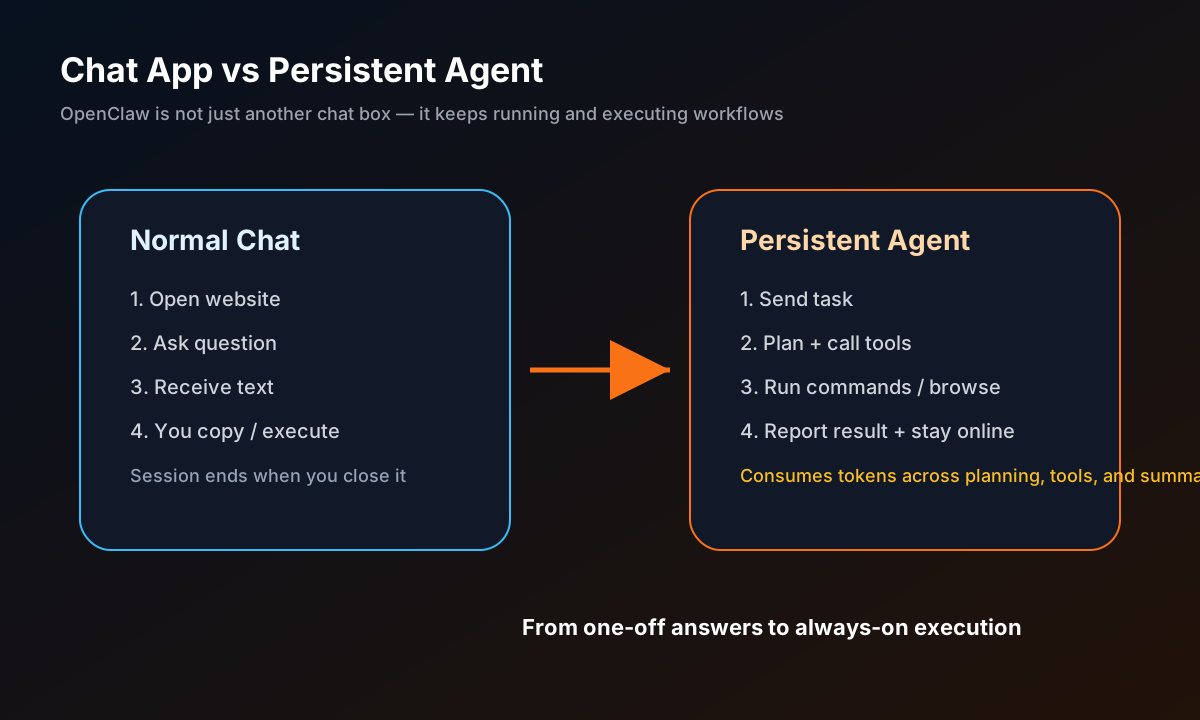
A normal chat tool usually works like this:
you open a webpage -> type a question -> get text -> copy/paste actions yourself -> close the tab
OpenClaw is closer to this:
you send a task -> Agent understands the goal -> calls tools -> runs commands / browses / summarizes -> stays online for the next task
OpenClaw itself is not the model. You still connect Claude, OpenAI, Gemini, local models, or an OpenAI-compatible API. OpenClaw handles:
- running the Agent;
- managing configuration and onboarding;
- connecting tools and messaging channels;
- staying online;
- retaining context and executing workflows.
Why Start with a VPS?
OpenClaw can run locally, on a Mac mini, on a cloud server, or inside containers. For a first 24/7 Agent deployment, a VPS is usually the cleanest path.
Reasons:
- Closer to production: long-running service, stable networking, easier Telegram/Discord/bridge integrations.
- Safer boundary: the Agent does not directly access your personal computer’s browser history, files, or passwords.
- Easy reset: if you break the environment, rebuild the server without damaging your local machine.
- Better for automation: cron jobs, webhooks, and messaging platforms all work better on an always-on host.
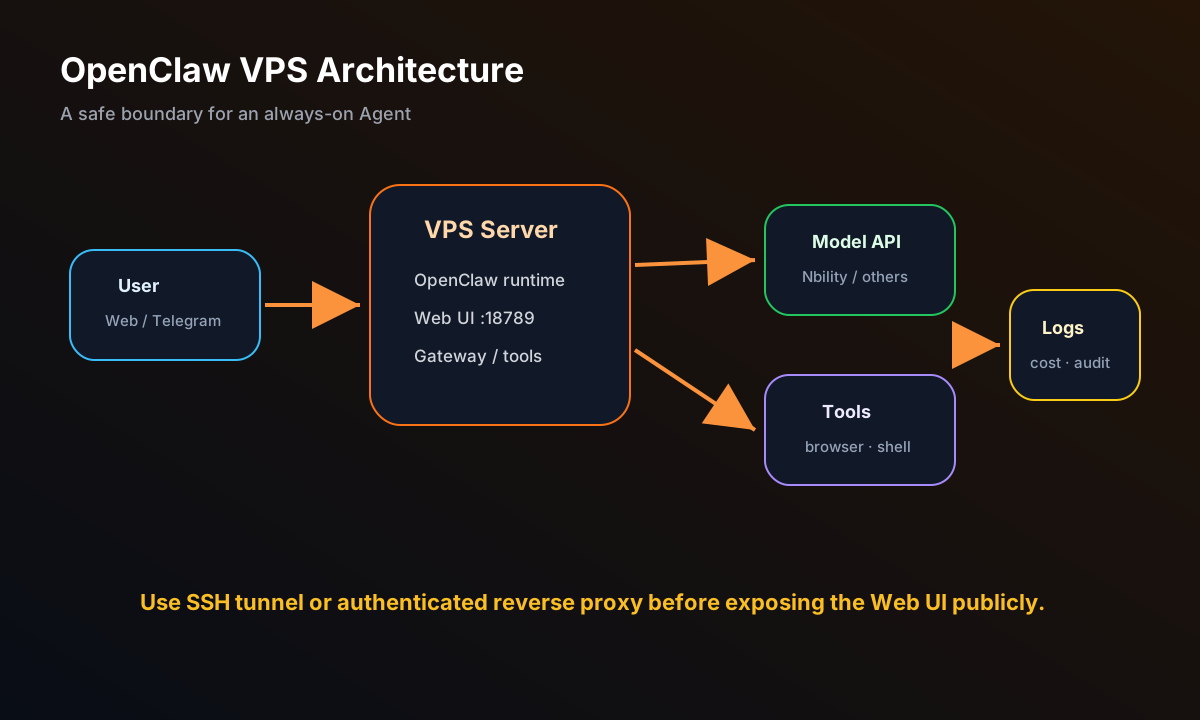
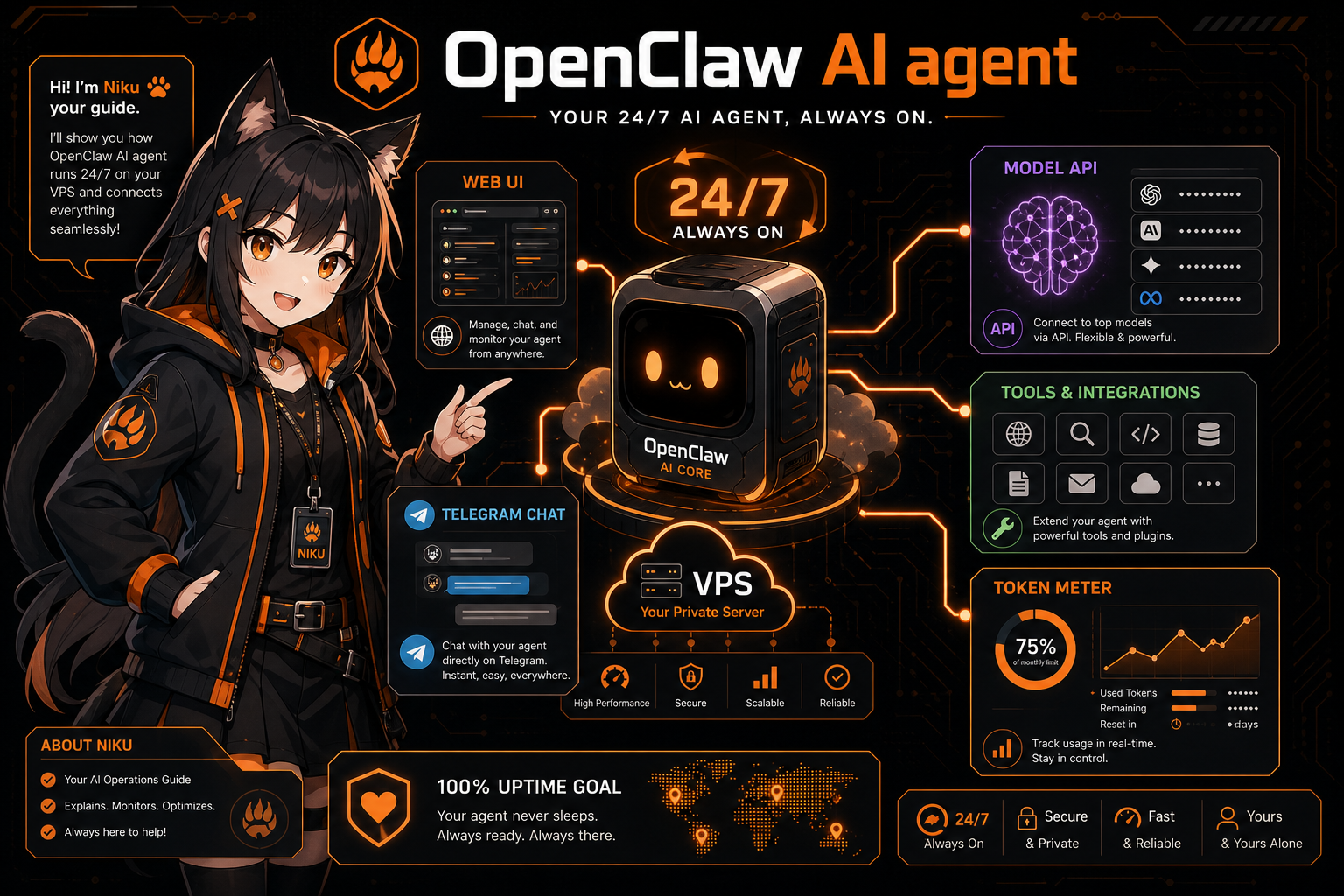
A small server is enough for a first trial: 1–2 CPU cores and 2–4 GB RAM can get you started. If you plan to run browser automation, multiple Agents, or heavier logs/databases, scale up later.
Prerequisites
This article assumes Ubuntu on a VPS.
You need:
- an Ubuntu server;
- SSH access as root or a sudo user;
- Node.js / npm;
- a model API key;
- optional: Telegram Bot Token;
- optional: domain, reverse proxy, HTTPS.
Update the system:
sudo apt update
sudo apt upgrade -y
Install basic tools:
sudo apt install -y curl git ca-certificates build-essential
Install Node.js. NodeSource is used here as an example:
curl -fsSL https://deb.nodesource.com/setup_22.x | sudo -E bash -
sudo apt install -y nodejs
node -v
npm -v
Step 1: Install the OpenClaw CLI
If you manage Node packages with npm, install OpenClaw globally:
sudo npm i -g openclaw
Verify the command:
openclaw --help
If you use the official installer script or a cloud vendor template, you can skip the npm step and go directly to onboarding.
Note: OpenClaw commands may change between versions. Before production deployment, run
openclaw --helpandopenclaw onboard --help, then follow the current CLI output.
Step 2: Prepare the Model API
OpenClaw needs a brain. Common choices include:
- Claude / Anthropic;
- OpenAI;
- Gemini;
- Ollama local models;
- OpenAI-compatible APIs.
If you want the least friction, start with an OpenAI-compatible API. This is where Nbility is useful: you can reuse the same Base URL, API Key, and model naming approach across Hermes, OpenClaw, Dify, NextChat, and other Agent tools.
Configuration idea:
Base URL: https://api.nbility.dev/v1
API Key:  sk-xxxxxxxxxxxxxxxx
Model:    choose a model available in your Nbility account
Do not put real keys in docs or screenshots. Use:
[REDACTED]
Step 3: Run Onboarding
After installation, run:
openclaw onboard
Onboarding typically guides you through:
- selecting a model provider;
- entering an API key;
- choosing interaction methods;
- generating local configuration;
- connecting Web UI or chat channels;
- initializing runtime state.
If OpenClaw supports an OpenAI-compatible provider in your version, use:
Provider: OpenAI-compatible / Custom OpenAI endpoint
Base URL: https://api.nbility.dev/v1
API Key: [REDACTED]
Model:   your model name
If the onboarding UI only shows “OpenAI,” first select OpenAI, then inspect whether the config file supports changing Base URL. Do not blindly edit unknown config files. Check the current CLI first:
openclaw --help
openclaw config --help
Step 4: Open the Web UI
Many OpenClaw tutorials mention a local UI at:
http://localhost:18789
On the server, test locally:
curl -I http://127.0.0.1:18789
If you want to open the UI from your laptop, do not expose the port publicly right away. Use an SSH tunnel:
ssh -L 18789:127.0.0.1:18789 root@YOUR_SERVER_IP
Then open locally:
http://127.0.0.1:18789
For public access, use Nginx reverse proxy, Basic Auth, HTTPS, and IP allowlisting.
Step 5: Connect Telegram or Another Messaging Channel
A 24/7 Agent should not live only in a webpage. Telegram, Discord, Slack, or your own bridge layer makes it feel like an always-available teammate.
For Telegram, the rough flow is:
- create a bot with BotFather;
- copy the Bot Token;
- enter it during OpenClaw onboarding or in config;
- start the gateway;
- send a test message to the bot.
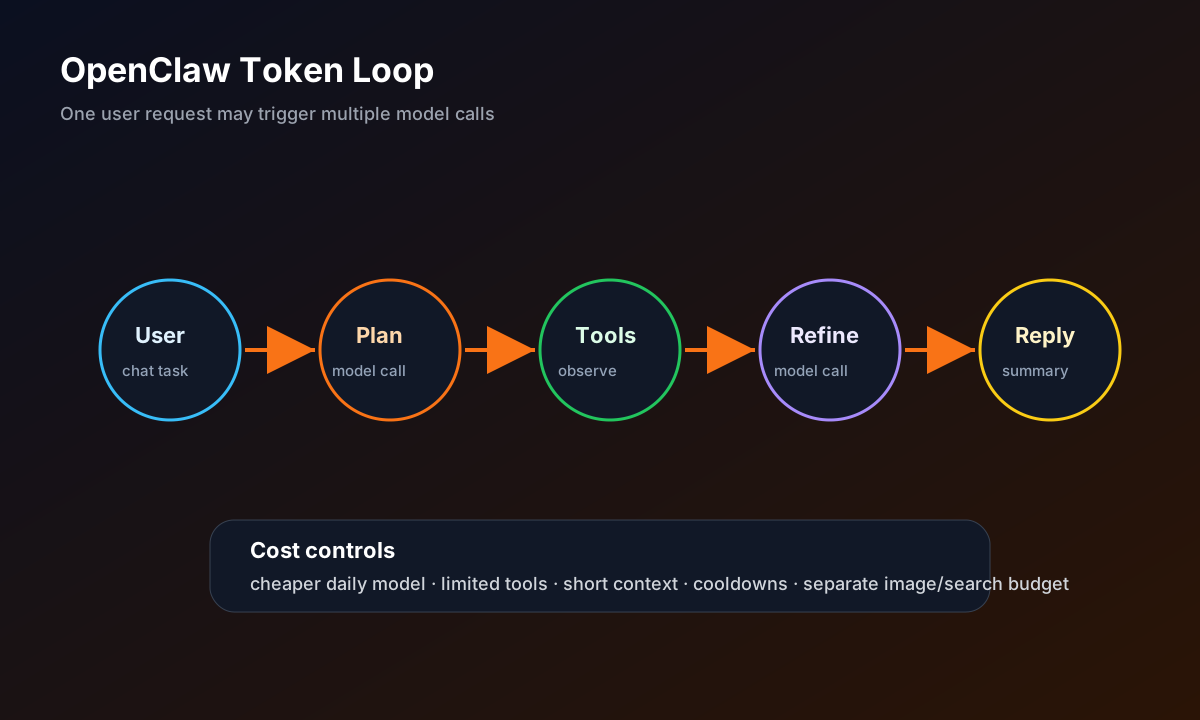
The cost pattern is also clear: one user message may trigger more than one model call. The Agent may plan, call tools, observe results, and summarize. Once you connect chat channels, usage frequency often increases, so token cost becomes more visible than in a one-off web chat.
Step 6: Keep It Running with systemd
If you manually run OpenClaw over SSH, the service may stop when the terminal closes. For production, use systemd.
First confirm the actual start command. Depending on version, it may be:
openclaw gateway run
or:
openclaw run
Use openclaw --help as the source of truth. Assuming the command is openclaw gateway run, create:
sudo tee /etc/systemd/system/openclaw.service >/dev/null <<'EOF'
[Unit]
Description=OpenClaw AI Agent
After=network.target

[Service]
Type=simple
User=root
WorkingDirectory=/root
Environment=HOME=/root
Environment=PATH=/usr/local/bin:/usr/bin:/bin
ExecStart=/usr/bin/env openclaw gateway run
Restart=always
RestartSec=5

[Install]
WantedBy=multi-user.target
EOF
Start and inspect:
sudo systemctl daemon-reload
sudo systemctl enable --now openclaw
sudo systemctl status openclaw --no-pager -l
journalctl -u openclaw -n 100 --no-pager
If systemd cannot find openclaw, locate it:
which openclaw
Then replace ExecStart with the absolute path.
Step 7: Run an End-to-End Check
For Agent deployment, “the process is running” is not enough. Verify the full path.
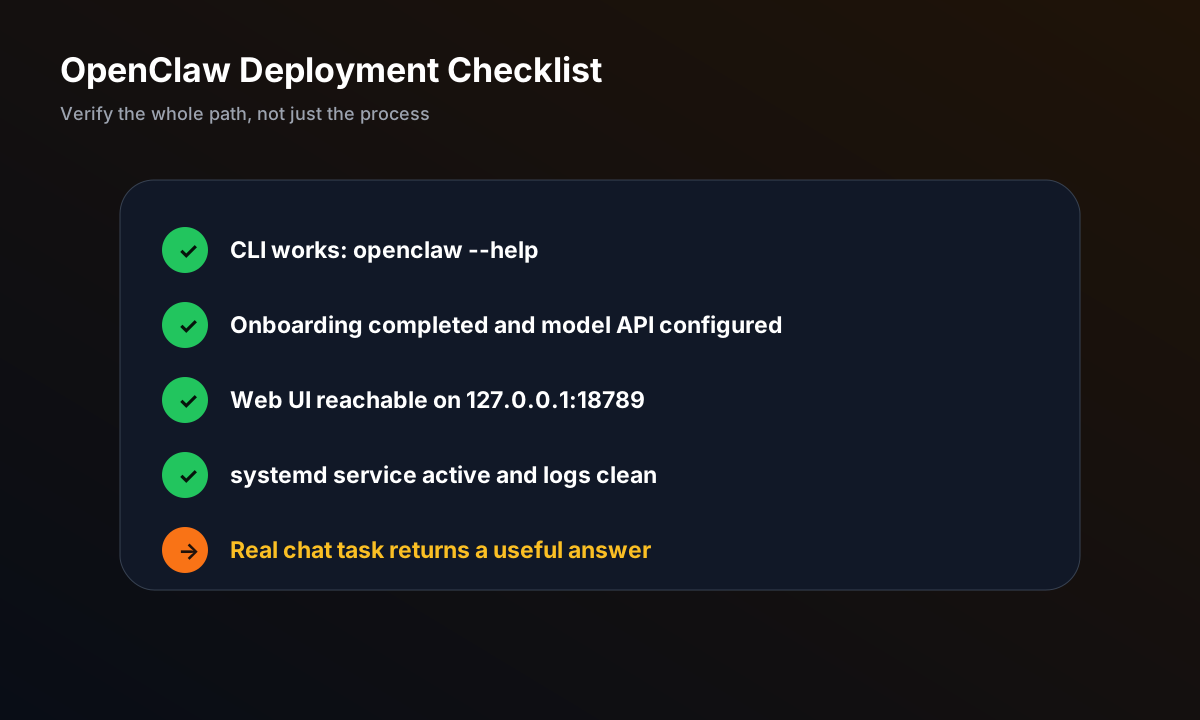
Suggested order:
# 1. CLI works
openclaw --help

# 2. Config command exists
openclaw config --help || true

# 3. Web UI is reachable
curl -I http://127.0.0.1:18789 || true

# 4. Service stays alive
systemctl is-active openclaw || true
journalctl -u openclaw -n 50 --no-pager || true
Then send a real task from your connected chat channel:
Summarize what you can do right now and list 3 tasks that are suitable for automation.
Common model/API errors:
- 401 / unauthorized: wrong API key;
- 404 / model not found: wrong model name;
- connection refused: Base URL or network problem;
- rate limit / insufficient quota: quota or rate-limit issue.
How to Control Token Cost
OpenClaw-style Agents consume tokens differently from normal chat.
Normal chat:
one user message -> one model response
Agent task:
one user message -> planning -> tool calls -> observations -> more planning -> final summary
Practical controls:
- use cost-effective models for daily tasks;
- reserve stronger models for deep research or complex code;
- do not expose all tools to public chat channels;
- periodically clear meaningless long context;
- set cooldowns and budgets for automation;
- budget separately for image generation, browser automation, and deep search.
This is why Nbility is a natural fit in this tutorial. It is not a “chat subscription.” It is a unified token entry point for long-running Agent applications. You can manage API keys, models, usage, and recharge in one place.
Safety Tips
OpenClaw has tool and execution capabilities, so do not treat it as a normal chatbot.
Recommendations:
- do not run it directly on your main personal machine at first;
- keep only necessary files and permissions on the VPS;
- store API keys in environment variables or config files, not in articles or screenshots;
- do not expose Web UI directly to the internet;
- allowlist chat users/channels;
- require confirmation for high-risk tools;
- review logs and cost regularly;
- start with small tasks before expanding permissions.
Common Issues
1. openclaw: command not found
Check npm global bin path:
npm bin -g
which openclaw
If you use nvm, systemd may not inherit the nvm path. Add the actual path to Environment=PATH=... or use an absolute ExecStart path.
2. Web UI does not open
Test from the server first:
curl -I http://127.0.0.1:18789
If this fails locally, the service is not running. Check logs before changing Nginx.
3. Telegram does not reply
Check:
- Bot Token is correct;
- OpenClaw gateway is running;
- the server can reach Telegram API.
4. API key is set but requests still return 401
Confirm you entered an API key, not a web login token. Confirm the Base URL is:
https://api.nbility.dev/v1
Also confirm the model is available in your account.
5. Token usage is higher than expected
This is common for Agents. Reduce tools, shorten context, lower automation frequency, then consider model switching.
Summary
In this article, we deployed OpenClaw on a server and walked through CLI installation, onboarding, model API setup, Web UI access, messaging entry points, systemd persistence, verification, cost control, and safety.
This is a strong soft-promotion scenario for Nbility because OpenClaw naturally needs:
- a stable OpenAI-compatible Base URL;
- manageable API keys;
- rechargeable tokens;
- a model entry point reusable across multiple Agent tools.
The next article can explain why AI Agents consume more tokens than normal chat. That topic can break down planning, tool calls, context, image generation, web search, and retries—making it a natural bridge to token-platform conversion.
Image Prompts
Cover:
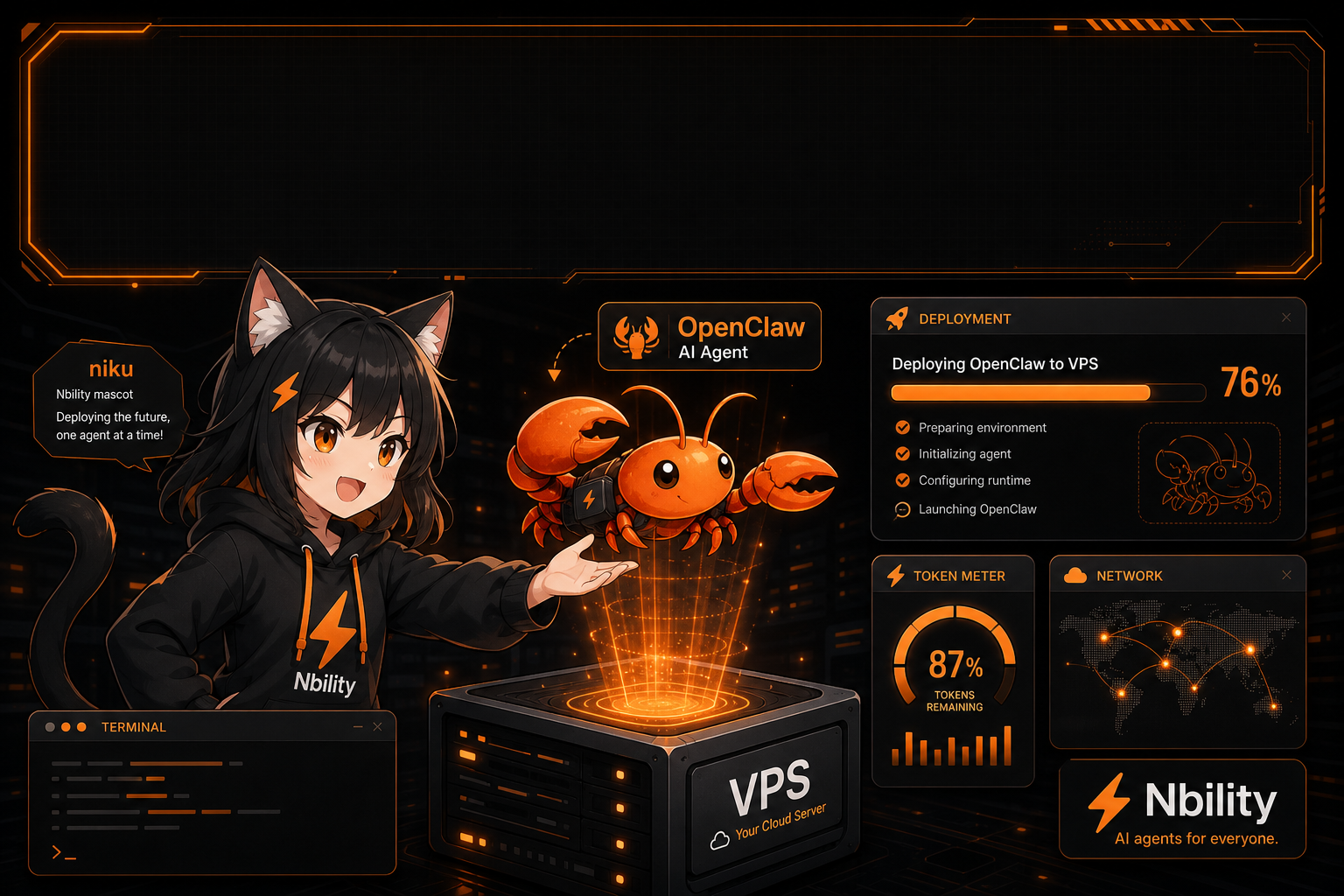
A polished tech blog cover illustration. niku, Nbility mascot, cute anime catgirl with black cat ears and black hoodie with orange lightning logo, deploying a cute lobster-shaped OpenClaw AI agent on a VPS server, terminal windows, cloud server panels, token meter, black and orange brand palette, no readable real credentials, leave empty title space.
Body illustration:
A clean anime-tech illustration showing OpenClaw AI agent running 24/7 on a VPS, connected to Web UI, Telegram chat, model API, tools, and token meter. Include niku as a guide, black and orange colors, no real keys or private data.