GPT-image / Multimodal Image API Beginner Guide
A practical beginner guide to text-to-image generation, reference-image editing, Base URLs, b64_json outputs, cost control, and troubleshooting with an OpenAI-compatible image API.
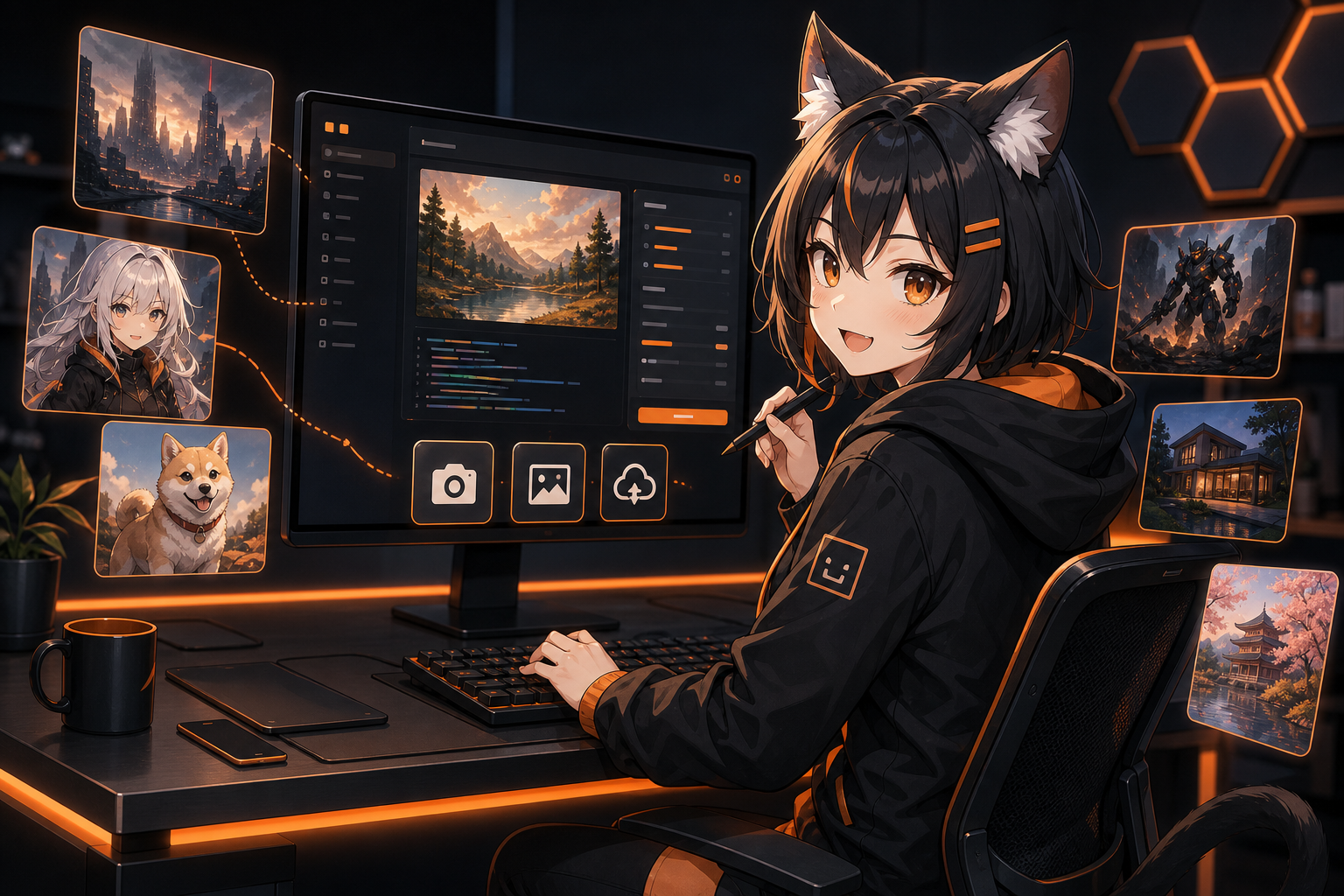
The first mental model most people have for an image API is simple: send a prompt, get an image. Once you connect it to a product, a publishing workflow, a group bot, or a marketing pipeline, the real questions appear: why is the image returned as base64? Is text-to-image the same as editing a reference image? Which size and quality should you choose? When generation fails, should you retry or ask the user to rewrite the prompt?
This guide explains the basic GPT-image / multimodal image API workflow in a copy-pasteable way. The examples use an OpenAI-compatible style, with Nbility as the unified API entry point: one Base URL, one API key, and a model name you can route, monitor, and replace later.
Three different tasks: vision, text-to-image, and image editing
“Multimodal” can be confusing. For image workflows, split the problem into three categories:
- Vision / image understanding: provide images as input and ask a model to describe, OCR, classify, or reason about them. OpenAI’s Images and Vision guide covers this class of use cases across APIs such as Chat Completions and Responses.
- Text-to-image generation: provide only a prompt and create a new image. The Image API
images/generationsendpoint is the simple path. - Reference-image editing: upload one or more images and ask the model to preserve, transform, or edit parts of them. Image edit endpoints may also support masks, file constraints, and model-specific parameters.
A common beginner mistake is to say “let the model look at this image and generate another one” without specifying whether the image is a vision input, a reference image, or an edit target.
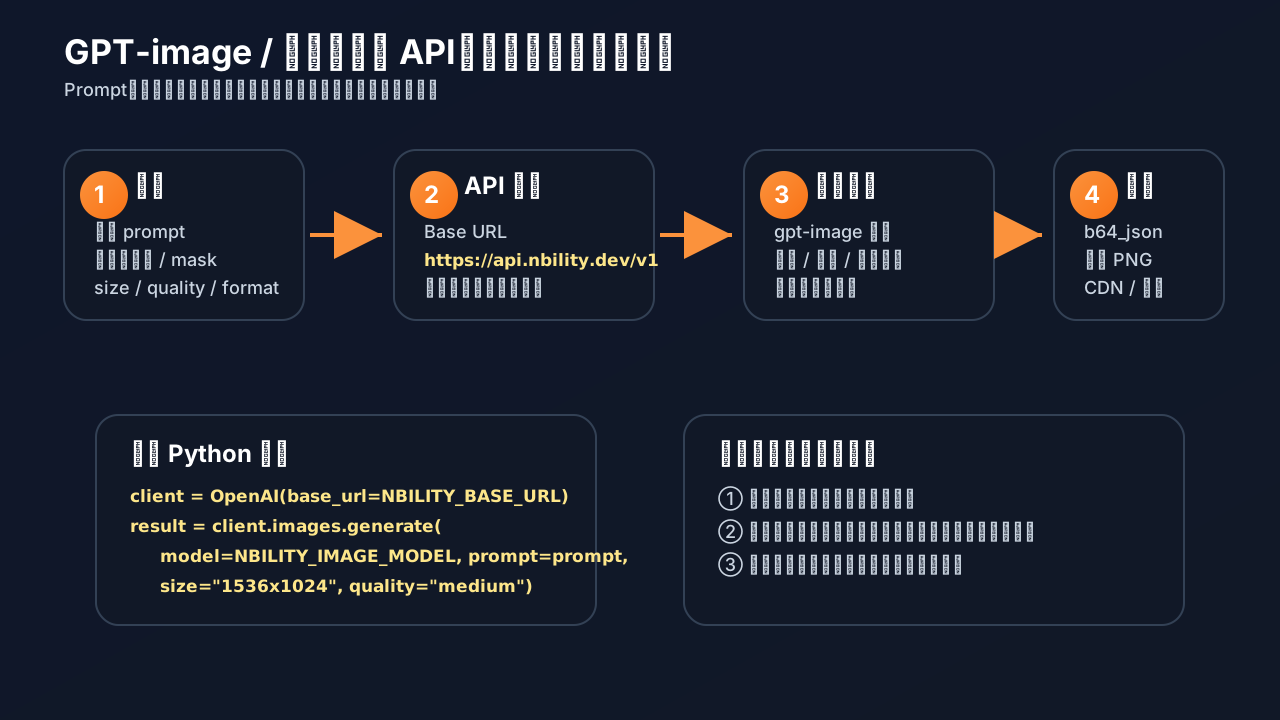
Start with the Image API before building a complex Agent
OpenAI’s documentation describes two broad ways to generate images: the Image API and the image generation tool inside the Responses API.
- Image API: best for one-shot generation or edits. It is easy to plug into scripts, backends, and automation jobs.
- Responses API with image generation tool: useful for conversational and iterative editing, such as generating an image and then asking the model to make it more realistic or change the background.
If you are building article covers, product drafts, social images, or bot-generated illustrations, start with the Image API. Move to Responses-based workflows when you need multi-turn editing history or an Agent that decides whether to generate or edit.
Environment variables
Create a .env file:
NBILITY_API_KEY=[REDACTED]
NBILITY_BASE_URL=https://api.nbility.dev/v1
NBILITY_IMAGE_MODEL=gpt-image-2
If your account does not currently expose gpt-image-2, replace it with an available GPT image model. The important part is consistency:
base_urlshould point to the OpenAI-compatible API root, usually including/v1.api_keyis sent as a Bearer token.modelmust be an image-generation model, not a regular chat model.
Minimal Python example: text-to-image
Install dependencies:
python -m venv .venv
source .venv/bin/activate
pip install openai python-dotenv
Create generate_image.py:
import base64
import os
from pathlib import Path

from dotenv import load_dotenv
from openai import OpenAI

load_dotenv()

client = OpenAI(
    api_key=os.environ["NBILITY_API_KEY"],
    base_url=os.environ.get("NBILITY_BASE_URL", "https://api.nbility.dev/v1"),
)

prompt = """
A clean hero image for a technical blog post about AI image generation APIs:
a developer desk, floating image thumbnails, API request cards, black and orange color palette,
modern 3D illustration, no readable text.
"""

result = client.images.generate(
    model=os.environ.get("NBILITY_IMAGE_MODEL", "gpt-image-2"),
    prompt=prompt,
    size="1536x1024",
    quality="medium",
)

image_base64 = result.data[0].b64_json
image_bytes = base64.b64decode(image_base64)

out = Path("generated-cover.png")
out.write_bytes(image_bytes)
print(f"saved: {out.resolve()}")
Run it:
python generate_image.py
Many GPT image models return base64 image data instead of a permanent URL, so your application should decode and store the file.
cURL example: verify the request path first
When SDK errors are unclear, use curl to test the raw request:
curl -X POST "https://api.nbility.dev/v1/images/generations"   -H "Authorization: Bearer $NBILITY_API_KEY"   -H "Content-Type: application/json"   -d '{
    "model": "gpt-image-2",
    "prompt": "A minimal orange and black illustration of an AI image API pipeline, no text",
    "size": "1024x1024",
    "quality": "medium"
  }'   | jq -r '.data[0].b64_json'   | base64 --decode > test.png
This verifies the Base URL, API key, model availability, and the b64_json response field.
Reference-image editing
If the user asks to keep the same cat pose but change the background to a cyberpunk city, that is image editing, not pure text-to-image generation. OpenAI’s image edit reference says GPT image models can accept input files such as png, webp, and jpg, with model-specific limits for file size, number of images, masks, and fidelity options.
Example:
import base64
import os
from pathlib import Path

from dotenv import load_dotenv
from openai import OpenAI

load_dotenv()
client = OpenAI(
    api_key=os.environ["NBILITY_API_KEY"],
    base_url=os.environ.get("NBILITY_BASE_URL", "https://api.nbility.dev/v1"),
)

result = client.images.edit(
    model=os.environ.get("NBILITY_IMAGE_MODEL", "gpt-image-2"),
    image=open("input.png", "rb"),
    prompt="Keep the main character, change the background into a cozy orange developer studio, no text.",
    size="1536x1024",
    quality="medium",
)

Path("edited.png").write_bytes(base64.b64decode(result.data[0].b64_json))
For production, hard-code a parameter allowlist. Do not expose every model parameter directly to end users.
Choosing size, quality, and format
Good beginner defaults:
- Blog cover:
1536x1024. - Square social image:
1024x1024. - Vertical poster:
1024x1536. - Quality: start with
medium; usehighonly for final or commercial images. - Format: default to
png; considerwebporjpegfor faster web delivery. - Count: default to
n=1; use a queue for batch generation.
Some models support custom dimensions, but they may impose divisibility, aspect-ratio, and maximum-resolution constraints. In a product UI, expose only a few verified size buttons.
Do not keep users waiting inside one HTTP request
Image generation is slower than chat. A more robust backend flow is:
- User submits a prompt.
- Backend creates a job and returns
task_id. - A worker calls the image API.
- The result is stored in object storage or a static directory.
- The frontend polls job status, or a bot sends the resulting image link.
A unified API gateway such as Nbility helps because you can track chat, summarization, vision, and image-generation usage in one place, then attribute cost by user, group, article, or automation job.
Troubleshooting by layer
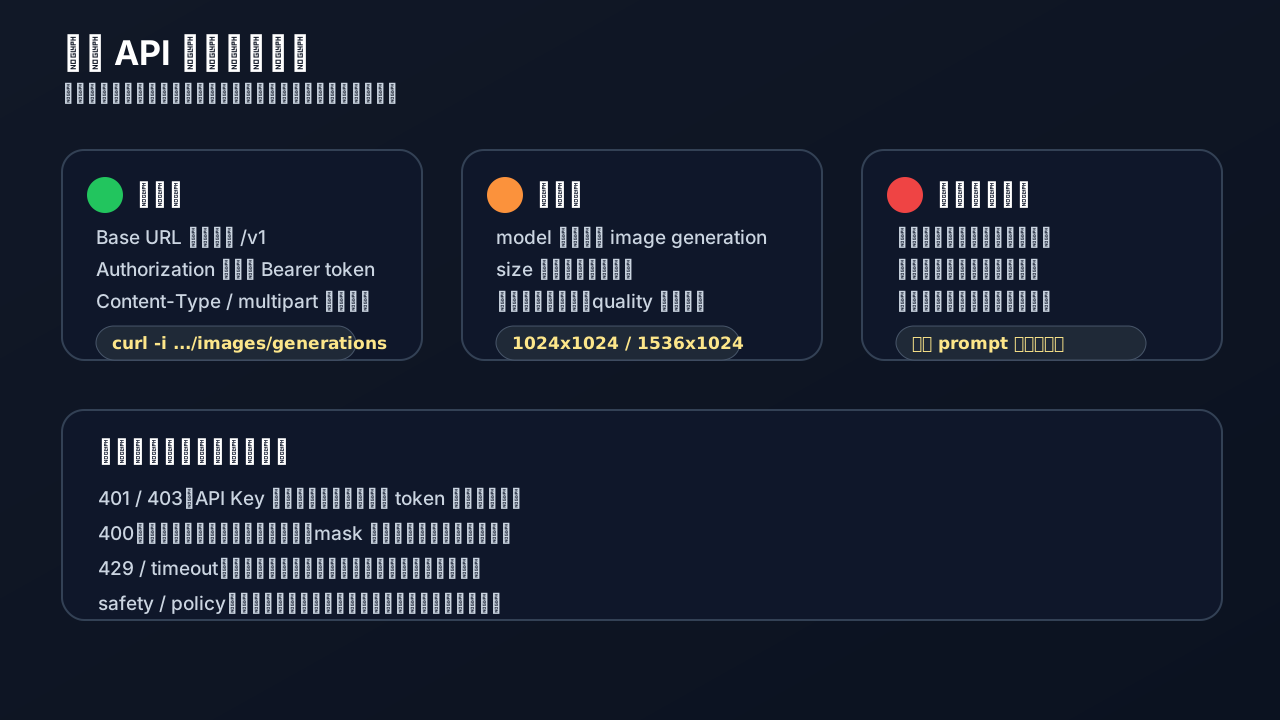
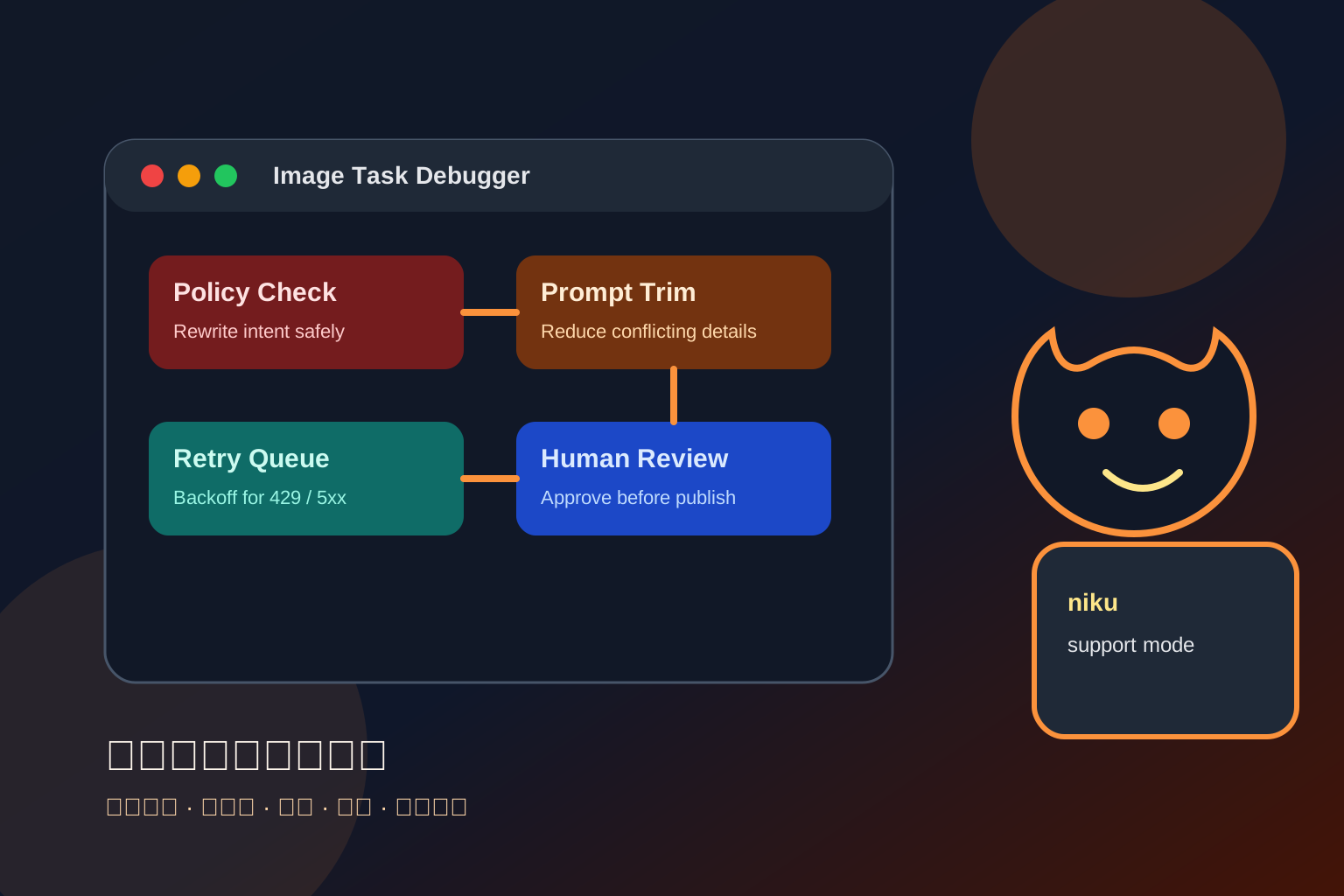
Common failures:
- 401 / 403: invalid key, missing permission, or unavailable model. Check
Authorizationand the model name. - 400: incompatible parameter, unsupported size, transparent background not supported, invalid mask, or unsupported file format.
- 429: rate limit. Queue the request and retry later.
- timeout / upstream error: upstream generation is slow or temporarily unavailable. Retry once, not forever.
- safety / policy: the prompt violates policy. Ask the user to change the description instead of calling it a network error.
A practical rule: retry network errors, timeouts, and 5xx responses; do not automatically retry 400, 401, 403, or safety-policy errors.
Prompt structure: write for the use case
A useful image prompt usually contains five parts:
Subject: the main person, object, or scene
Use case: blog cover, product banner, tutorial image, social poster
Composition: horizontal/vertical, title space, close-up/wide shot
Style: realistic, 3D, flat illustration, anime, brand colors
Constraints: no readable text, no watermark, no fake logos
Example:
A horizontal technical blog cover about multimodal image generation API.
Main subject: a developer dashboard with floating image thumbnails and API request cards.
Composition: leave clean title space on the left, main visual on the right.
Style: modern 3D illustration, black and orange palette, soft lighting.
Constraints: no readable text, no watermark, no real company logos.
The more the prompt reflects the final use case, the more usable the output tends to be.
A reusable backend function
Wrap generation into a function:
import base64
import os
from pathlib import Path
from openai import OpenAI

client = OpenAI(
    api_key=os.environ["NBILITY_API_KEY"],
    base_url=os.environ.get("NBILITY_BASE_URL", "https://api.nbility.dev/v1"),
)

def generate_image(prompt: str, out_path: str, *, size="1536x1024", quality="medium") -> Path:
    if len(prompt) > 4000:
        raise ValueError("prompt too long for this application policy")

    result = client.images.generate(
        model=os.environ.get("NBILITY_IMAGE_MODEL", "gpt-image-2"),
        prompt=prompt,
        size=size,
        quality=quality,
    )

    data = result.data[0].b64_json
    path = Path(out_path)
    path.parent.mkdir(parents=True, exist_ok=True)
    path.write_bytes(base64.b64decode(data))
    return path
For production, add a queue, user rate limits, error classification, content review, object storage, and usage logging.
References
- OpenAI Image generation guide: https://developers.openai.com/resources/image-generation
- OpenAI Images and vision guide: https://developers.openai.com/resources/images-and-vision
- OpenAI Create image edit reference: https://developers.openai.com/api/reference/resources/images/methods/edit
- OpenAI
gpt-image-1API announcement: https://openai.com/index/image-generation-api - Nbility API overview: https://nbility.dev/docs/api
- Nbility Chat Completions API: https://nbility.dev/docs/api/chat/completions