A Workflow for Generating Xiaohongshu and X Post Images
Turn a title, summary, and platform requirements into reusable Xiaohongshu covers, carousel cards, and X/Twitter post images with AI generation, safe zones, cropping, and human review.
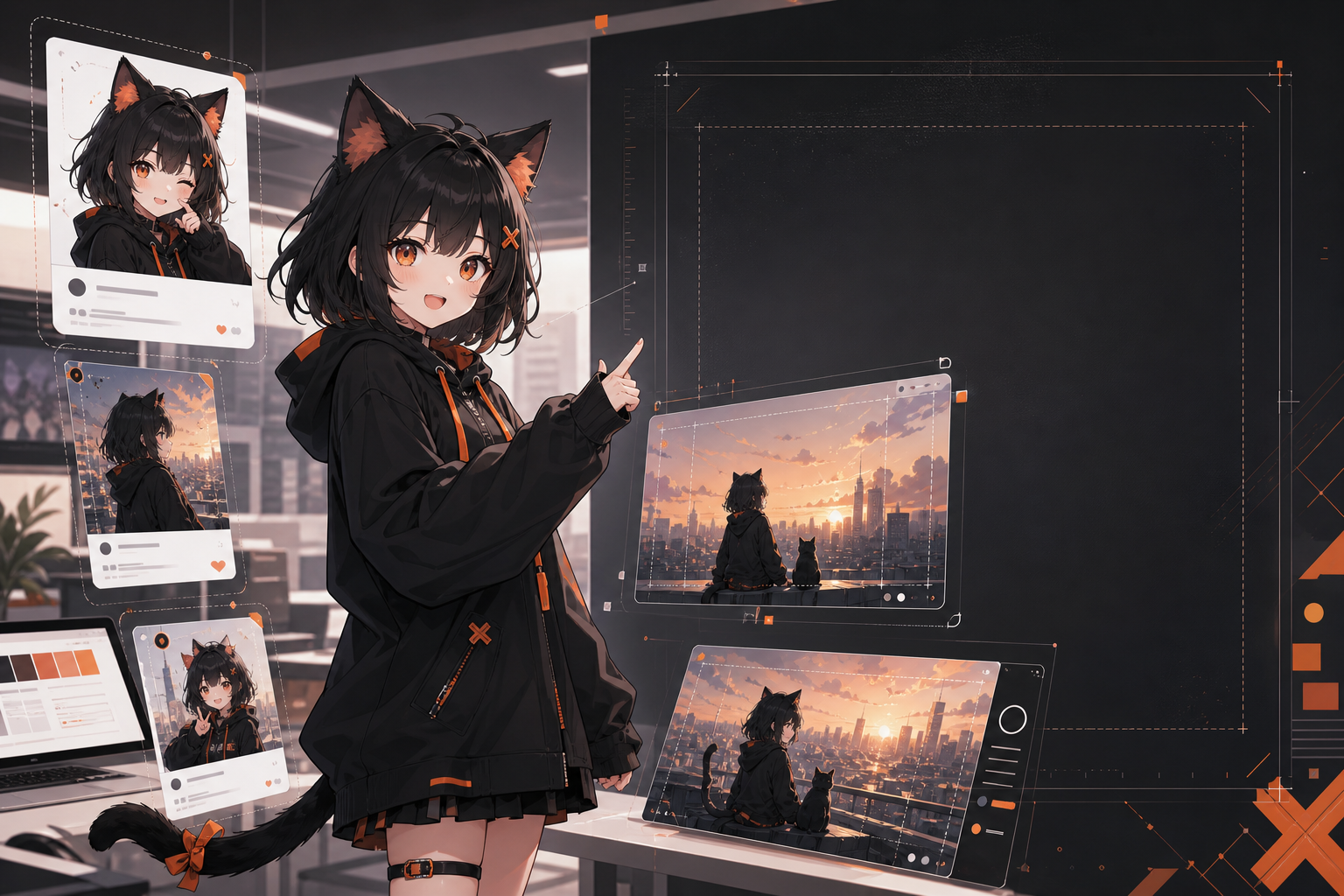
When you republish the same idea across platforms, the bottleneck is often not the copy. It is the image. A Xiaohongshu cover may crop away the headline. Carousel cards may look inconsistent. A landscape image on X/Twitter may become unreadable once it is scaled down in the feed.
This guide turns social-image generation into a reusable workflow: extract a content brief, choose platform-specific layouts, generate a clean base image, then use scripts for cropping, safe zones, compression, and review. It fits well into an AI Agent writing pipeline, a Markdown publishing workflow, or a lightweight content-ops tool for a small team.
Start with the platform, not the image
Xiaohongshu and X have very different browsing contexts:
- Xiaohongshu behaves like a visual discovery shelf. The first image is the click gateway. Common ratios include portrait
3:4, square1:1, and landscape4:3; for tutorials and knowledge cards, portrait images such as1080×1440or1242×1660are usually the safest starting point. - X/Twitter works better with landscape visuals, product-launch images, summaries, and link-driving graphics. A common post image is
16:9, for example1200×675; square1:1images are also useful for compact multi-image posts.
The X Help Center says posts can include GIF, JPEG, and PNG files, and photos are automatically scaled for expanded display. In practice, that means you should always preview the image on a phone before publishing.
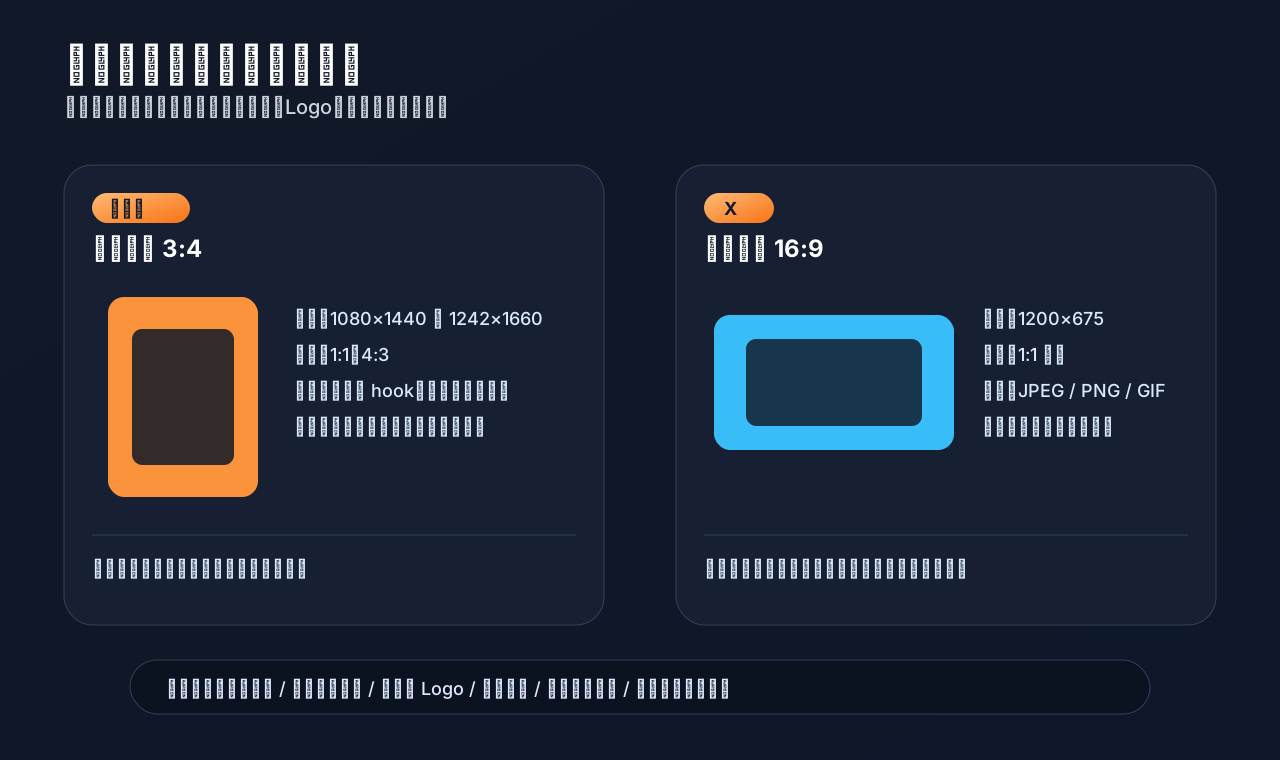
Recommended output matrix
A consistent content team should not redesign from scratch every time. For one article or product update, generate these reusable assets:
- Xiaohongshu cover:
3:4, with a strong headline and clear visual hook. - Xiaohongshu carousel cards: also
3:4, one point per slide. - X landscape image:
16:9, good for summaries, architecture diagrams, and product launches. - X square image:
1:1, useful for multi-image posts and compact mobile previews. - Text-free base image: keep one clean version so titles can be changed later.
The key principle is: let AI generate the visual base, but add final text with a script or design tool. This is especially important for Chinese titles, small labels, code snippets, and product copy.
Workflow overview
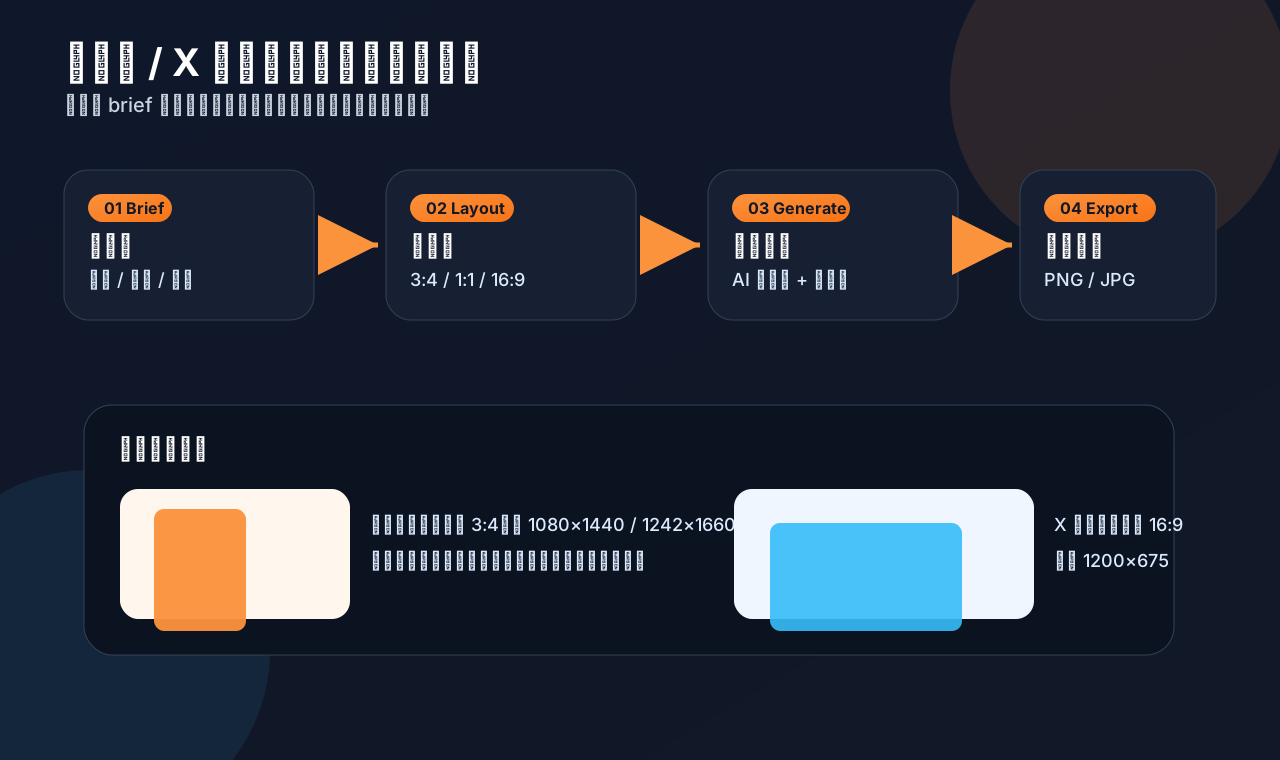
A practical pipeline looks like this:
Article title / summary / keywords
  -> content brief: audience, pain point, value proposition, emotional hook
  -> platform plan: Xiaohongshu 3:4; X 16:9 / 1:1
  -> generate a text-free base image or semi-finished visual
  -> overlay title, badges, and safe-zone guides by script
  -> export PNG/JPG, compress, and preview manually
  -> publish to Xiaohongshu, X, or a scheduling tool
This is where an OpenAI-compatible gateway such as Nbility fits naturally. A chat model can turn the article into a brief, an image model can generate the base image, and the same Base URL and API key can manage models, billing, and usage logs. For a content team, one unified entry point is easier to maintain than scattered keys across different tools.
Step 1: Convert content into a visual brief
Do not send the entire article directly to the image model. First create a short, stable brief:
title: "A workflow for generating Xiaohongshu and X post images"
audience: "AI tool users, indie developers, content operators"
platforms:
  - "Xiaohongshu: knowledge cards, tutorial covers, carousel posts"
  - "X: product launches, long-form promotion, technical opinion graphics"
hook: "One idea, multiple platform-ready image assets"
visual_metaphor: "An AI design desk exporting portrait cards and landscape tweet images"
brand_style: "black-orange tech palette, strong contrast, clean whitespace"
constraints:
  - "No real logos, QR codes, or API keys"
  - "Do not rely on the model for small Chinese text"
  - "Keep faces, titles, and screenshots inside safe zones"
The same brief can drive prompt generation, file naming, and human review.
Step 2: Use a reusable prompt template
A production prompt does not need to be clever. It needs to be structured:
Use case: social media image set for an AI tools tutorial.
Platforms: Xiaohongshu portrait cover and X/Twitter landscape post image.
Scene: an AI assistant working at a design dashboard, exporting multiple cards.
Composition: keep a clear title-safe area; main subject centered enough for square crop;
style: black and orange tech palette, clean modern illustration, high contrast.
Constraints: no real logo, no QR code, no watermark, no tiny readable text, no API key.
For Xiaohongshu cards, add “portrait composition, 3:4 safe area, large blank headline space.” For X images, add “landscape composition, 16:9, centered subject, readable at feed size.”
Step 3: Generate the base image with the Image API
Here is a minimal Python example using an OpenAI-compatible SDK setup. Point the Base URL to Nbility:
python -m venv .venv
source .venv/bin/activate
pip install openai python-dotenv pillow
.env:
NBILITY_API_KEY=[REDACTED]
NBILITY_BASE_URL=https://api.nbility.dev/v1
NBILITY_IMAGE_MODEL=gpt-image-2
generate_social_base.py:
import base64
import os
from pathlib import Path
from openai import OpenAI
from dotenv import load_dotenv

load_dotenv()

client = OpenAI(
    api_key=os.environ["NBILITY_API_KEY"],
    base_url=os.getenv("NBILITY_BASE_URL", "https://api.nbility.dev/v1"),
)

prompt = """
Social media image set concept for an AI tools tutorial.
A friendly AI mascot exports portrait cards and landscape tweet images
from a futuristic design dashboard. Black and orange tech palette,
clear title-safe blank areas, clean modern illustration.
No real logos, no QR codes, no watermark, no readable tiny text.
"""

result = client.images.generate(
    model=os.getenv("NBILITY_IMAGE_MODEL", "gpt-image-2"),
    prompt=prompt,
    size="1536x1024",
    quality="medium",
)

image_bytes = base64.b64decode(result.data[0].b64_json)
Path("outputs/base.png").parent.mkdir(parents=True, exist_ok=True)
Path("outputs/base.png").write_bytes(image_bytes)
print("saved outputs/base.png")
OpenAI’s Image Generation guide uses the same core pattern: call images.generate, read b64_json, decode it, and write it to a local file. The official GPT Image prompting guide also recommends clear sections: scene, subject, key details, and constraints.
Step 4: Crop into Xiaohongshu and X formats
In production, generate a large base image first, then use a script for cropping, title overlays, safe-zone guides, and compression. This example uses Pillow:
from pathlib import Path
from PIL import Image

SRC = Path("outputs/base.png")
OUT = Path("outputs/export")
OUT.mkdir(parents=True, exist_ok=True)

sizes = {
    "xiaohongshu-cover": (1080, 1440),  # 3:4
    "xiaohongshu-square": (1080, 1080), # 1:1
    "x-landscape": (1200, 675),         # 16:9
    "x-square": (1200, 1200),           # 1:1
}

img = Image.open(SRC).convert("RGB")

def cover_crop(im, target_w, target_h):
    src_w, src_h = im.size
    target_ratio = target_w / target_h
    src_ratio = src_w / src_h
    if src_ratio > target_ratio:
        new_w = int(src_h * target_ratio)
        left = (src_w - new_w) // 2
        box = (left, 0, left + new_w, src_h)
    else:
        new_h = int(src_w / target_ratio)
        top = (src_h - new_h) // 2
        box = (0, top, src_w, top + new_h)
    return im.crop(box).resize((target_w, target_h))

for name, size in sizes.items():
    out = cover_crop(img, *size)
    out.save(OUT / f"{name}.jpg", quality=92, optimize=True)
This is only a center-crop example. A real tool can add text overlays, brand badges, export WebP/JPG variants, and check file sizes automatically.
Step 5: Leave room for text and safe zones
The most common issue is not that the image is ugly. It is that it becomes unreadable after publishing. Use these rules:
- Keep the headline to one or two lines.
- Use Xiaohongshu’s first image for a strong hook, not full body copy.
- Use fewer words on X landscape images; let the post text carry the explanation.
- Keep faces, product screenshots, and important UI away from edges.
- Save a text-free base image for fast headline changes.
- Never place real API keys, phone numbers, QR codes, or unauthorized trademarks in the image.
For a recurring series, define two or three templates: tutorial, checklist, and opinion. Let AI change the theme and main visual while the brand system stays consistent.
Step 6: Review before publishing
Automation should accelerate production, not remove review. Before publishing, check:
[ ] The headline has no typo and is not cropped
[ ] Mobile previews for Xiaohongshu and X are readable
[ ] No real secrets, QR codes, internal dashboards, or private user data appear
[ ] No prohibited content, misleading comparison, or unauthorized logo appears
[ ] File format and size are acceptable for the platform
[ ] Carousel images use consistent ratio, colors, and typography
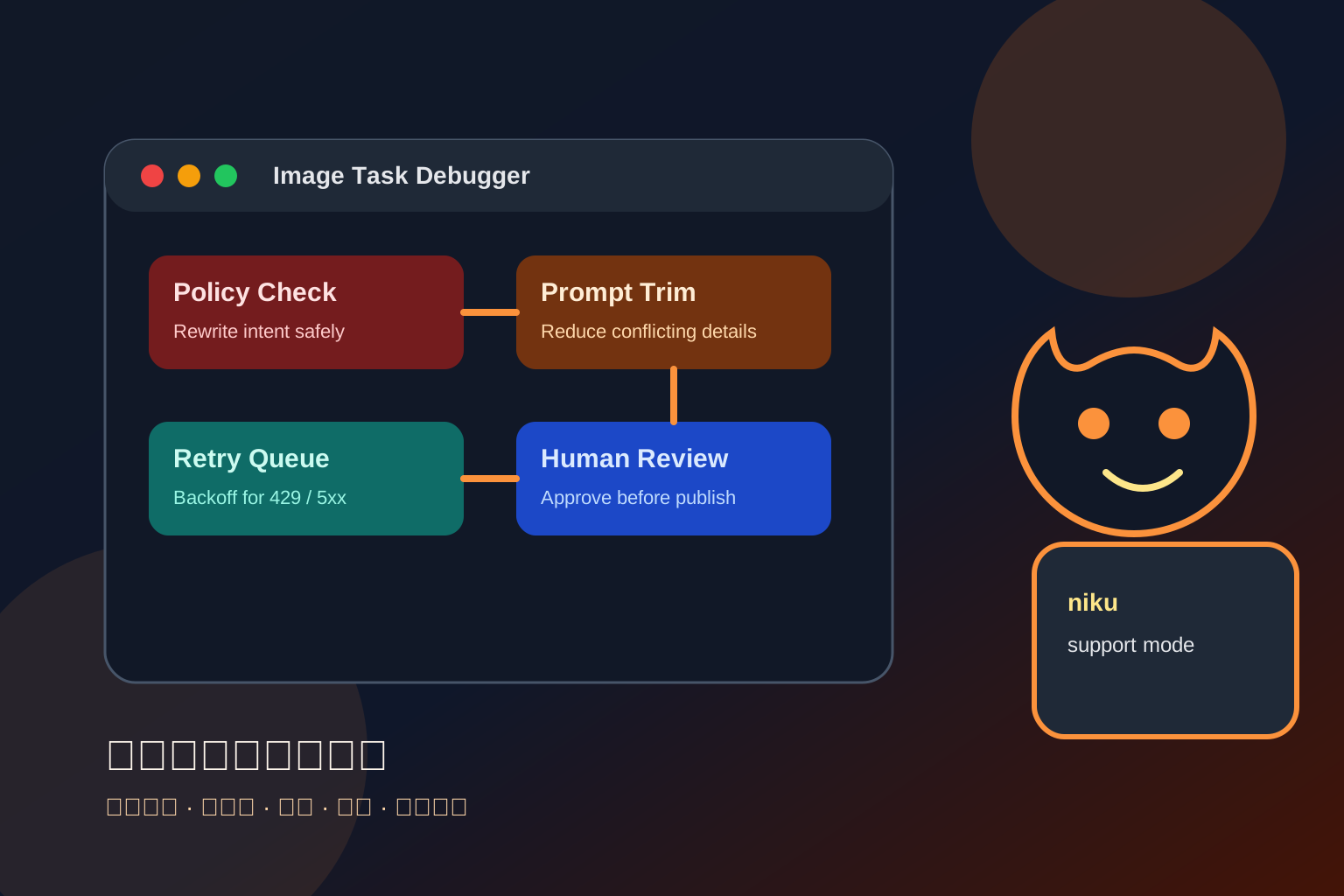
If you use an AI Agent, let it run a static check first: file names, dimensions, file sizes, prompt logs, and export folders. It can report risks before a human makes the final call.
Troubleshooting
1. The Xiaohongshu cover crops the headline
The headline is too close to the edge, or the image was not designed for the target ratio. Export again as 3:4 and keep generous top and side margins.
2. The X image is unreadable in the feed
There is too much text. Treat the image as a visual summary: one headline, one core visual, and the rest in the post body.
3. AI-generated Chinese text contains typos
Do not ask the model to render final Chinese text. Generate a text-free base image, then add text with Pillow, Canva, Figma, or your own template script.
4. The same idea looks inconsistent across platforms
Define a shared brand brief first: colors, background, mascot, icon style, and title area. Then only change aspect ratio and information density for each platform.
5. Batch generation costs are hard to control
Generate 2–4 low-cost directions first. Once you choose one, rerun it at higher quality. A unified gateway such as Nbility can track usage by project or API key, which is more reliable than manual estimates.
References
- OpenAI Image Generation guide: https://developers.openai.com/api/docs/guides/image-generation
- OpenAI GPT Image prompting guide: https://developers.openai.com/cookbook/examples/multimodal/image-gen-models-prompting-guide
- Nbility API overview: https://nbility.dev/docs/api
- X Help Center - Posting GIFs and pictures: https://help.x.com/en/using-x/posting-gifs-and-pictures
- Canva - Little Red Book design sizes: https://www.canva.cn/sizes/little-red-book
- Gaoding Design - Xiaohongshu image design templates: https://www.gaoding.com/features/61