Deploy an AI Agent to Your Own Server in Two Hours: A Hermes Agent Getting Started Guide
A practical walkthrough for deploying Hermes Agent from scratch: installation, model API configuration, starting the command-line assistant, and why AI Agents need a stable token supply.
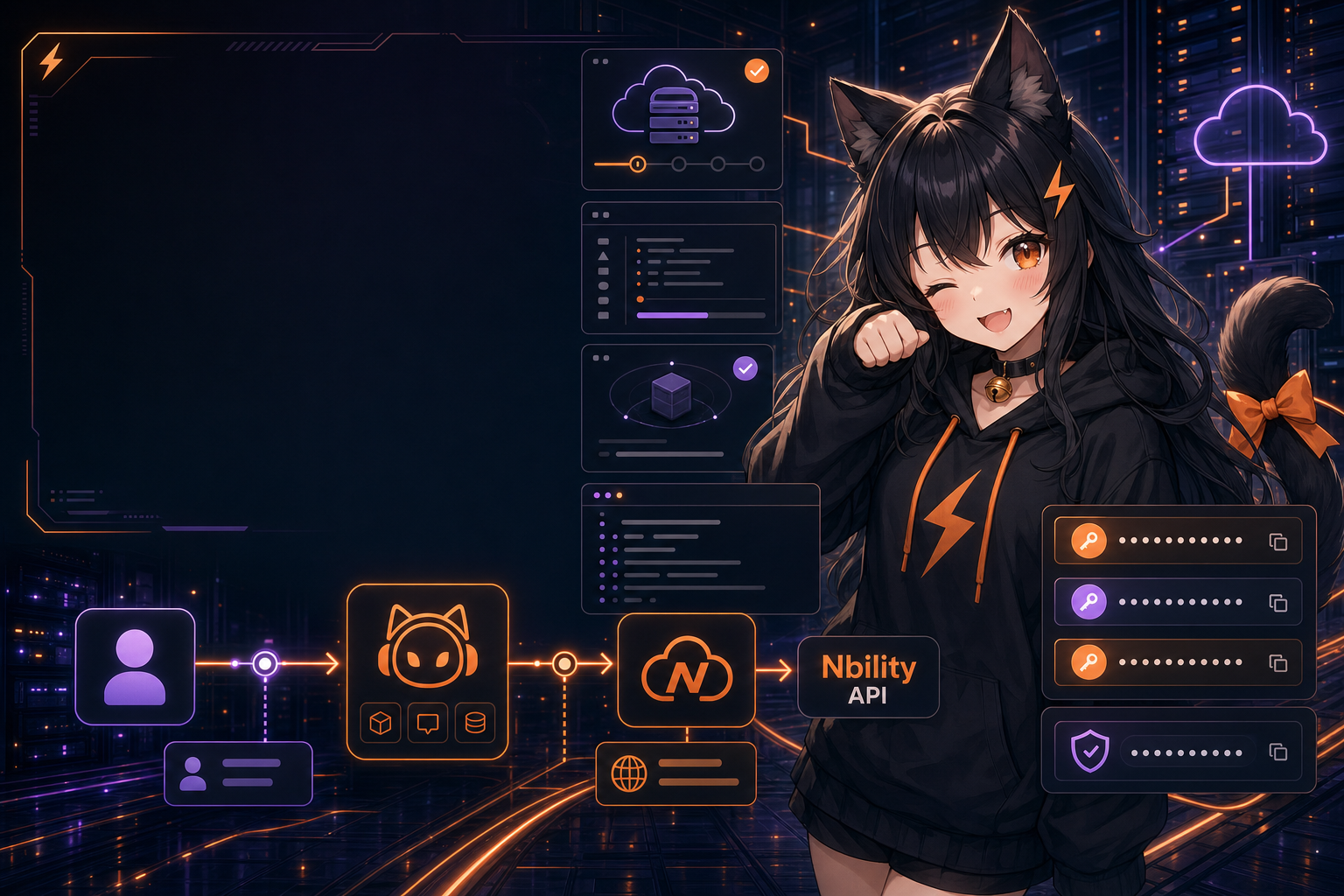
Over the past year, everyone has been talking about AI Agents.
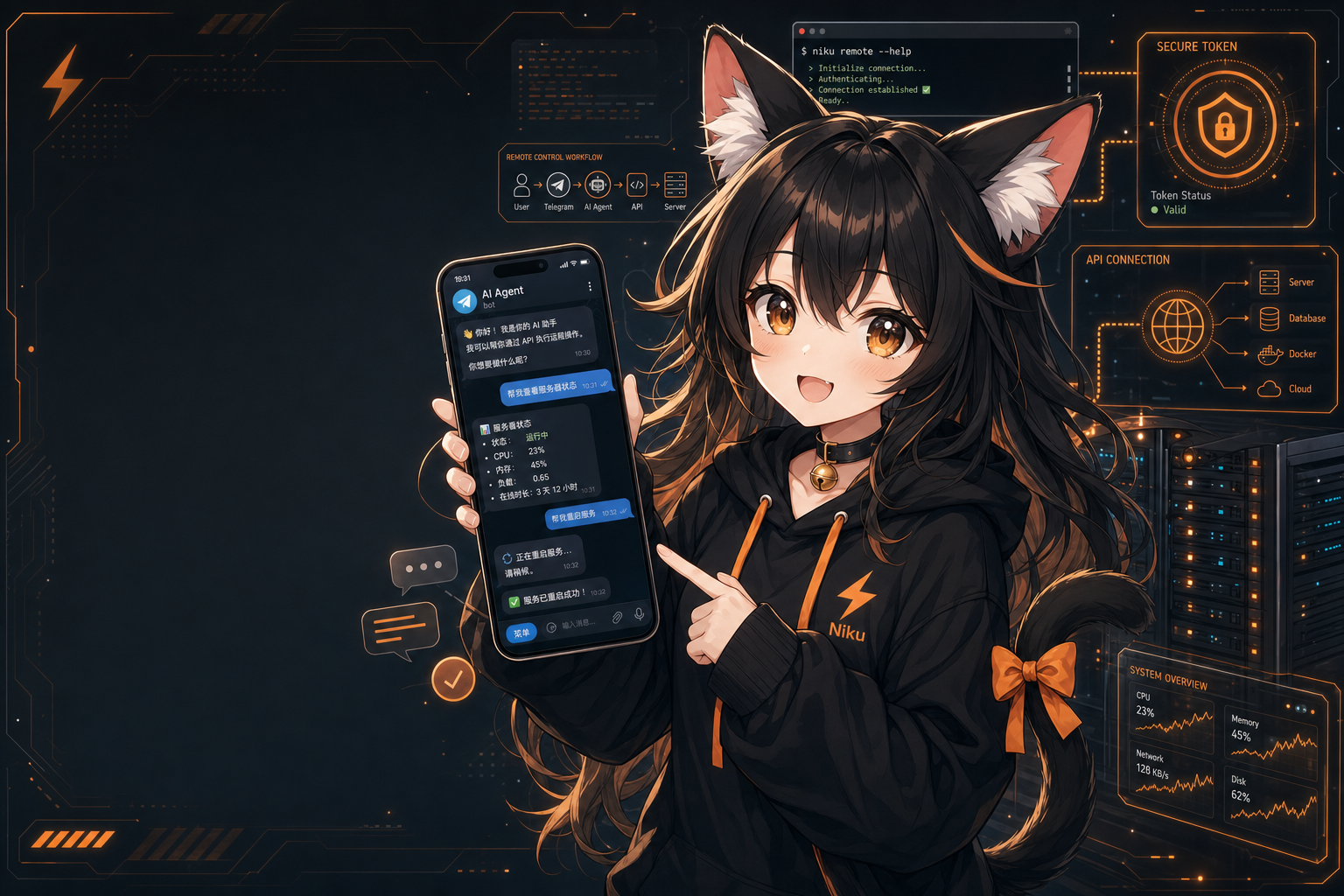
But if all you do is open a web page and chat with ChatGPT, you are not really using an Agent yet. The interesting question is whether it can read files, edit code, execute commands, browse the web, run scheduled tasks, and even connect to Telegram, Weixin, or QQ groups as a long-running assistant.
Recently I have been experimenting with Hermes Agent.
Its positioning is close to tools such as Claude Code, OpenClaw, and similar coding agents: it is not just a chat shell. It lets a model touch your working environment and complete tasks.
This article keeps the scope simple and does one thing:
Start from zero and get Hermes Agent running on a server.
If you follow along, you will end up with an AI Agent that works in the terminal. Later articles can build on this and connect it to Telegram, Weixin, QQ groups, scheduled jobs, automation, and coding workflows.
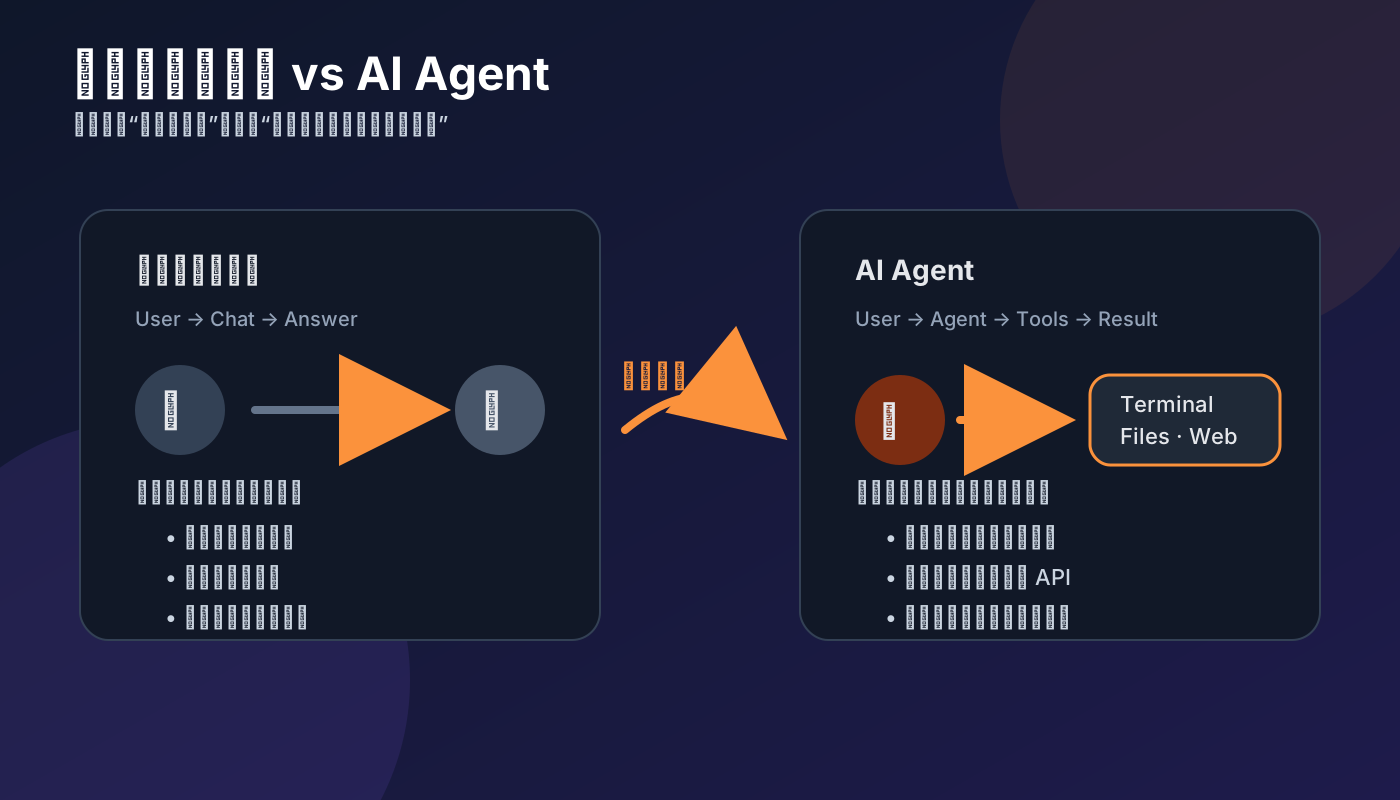
What Is the Difference Between an AI Agent and a Chatbot?
A normal chatbot is more like a question-and-answer window.
You ask a question and it replies. It does not know what files are on your computer, and it cannot execute commands for you. If you ask it to change code, it can at most give you suggestions. You still copy, run, and test everything yourself.
An AI Agent is different.
A useful Agent should be able to do at least these things:
- read project files
- modify code
- execute shell commands
- search for information
- call a browser
- run tests
- remember your preferences
- respond inside messaging apps
- run scheduled tasks
That is what makes Hermes Agent interesting. It is not just a chat wrapper. It is an Agent framework that can connect to tools, the filesystem, the terminal, and messaging platforms.
You can think of it as:
Giving the model hands and feet.
Why Deploy It to a Server?
You can run Hermes locally, but a server has several clear advantages.
First, it can stay online.
If you later connect Hermes to Telegram, Weixin, QQ groups, or ask it to summarize news and check server status every day, a local laptop is not ideal. When the computer shuts down, the Agent disappears.
Second, a server is better for automation.
For example:
- send an AI industry brief every morning at 9
- summarize group chats every night
- monitor website status
- notify you when a service goes down
- run scripts on a schedule
- check logs remotely
Third, a server environment is cleaner.
You can dedicate a small machine to the Agent and install only what it needs. When something breaks, it is easier to debug.
Prerequisites
This article assumes you already have a Linux server.
The minimum configuration does not need to be high. An ordinary cloud server is enough. Recommended:
- OS: Ubuntu 22.04 / 24.04, or Debian
- memory: at least 2 GB, preferably 4 GB or more
- disk: 10 GB or more
- network: able to access the model API
- permissions: root or sudo access is best
You also need a model API key.
Hermes Agent does not provide a model by itself. It needs to connect to OpenAI, Claude, OpenRouter, DeepSeek, Gemini, or another OpenAI-compatible API service.
If you do not want to register accounts across multiple model providers, you can use a unified API token service. I often use:
The benefit of this kind of platform is that one token can access multiple models. Many open-source projects only need a Base URL, API Key, and model name to start running. For beginners, that removes a lot of friction.
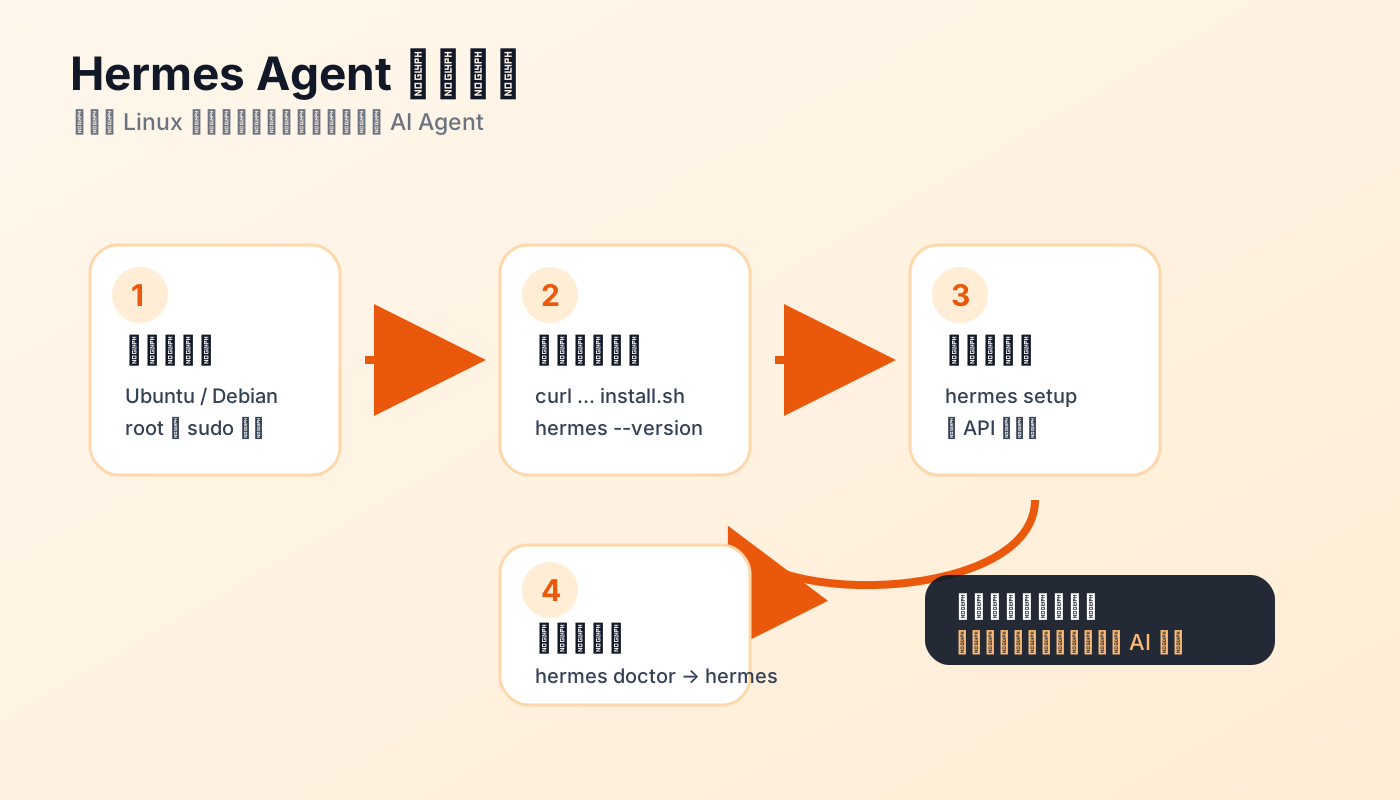
Step 1: Install Hermes Agent
After logging into the server, run:
curl -fsSL https://raw.githubusercontent.com/NousResearch/hermes-agent/main/scripts/install.sh | bash
After installation, reload your shell environment or log in to the server again.
Then check whether the command is available:
hermes --version
If you see a version number, the installation succeeded.
Step 2: Run the Initial Setup
For first use, run the setup wizard:
hermes setup
It will ask you to configure the model, provider, tools, and related settings.
If you use officially supported providers such as OpenAI, Anthropic, or OpenRouter, you can follow the prompts.
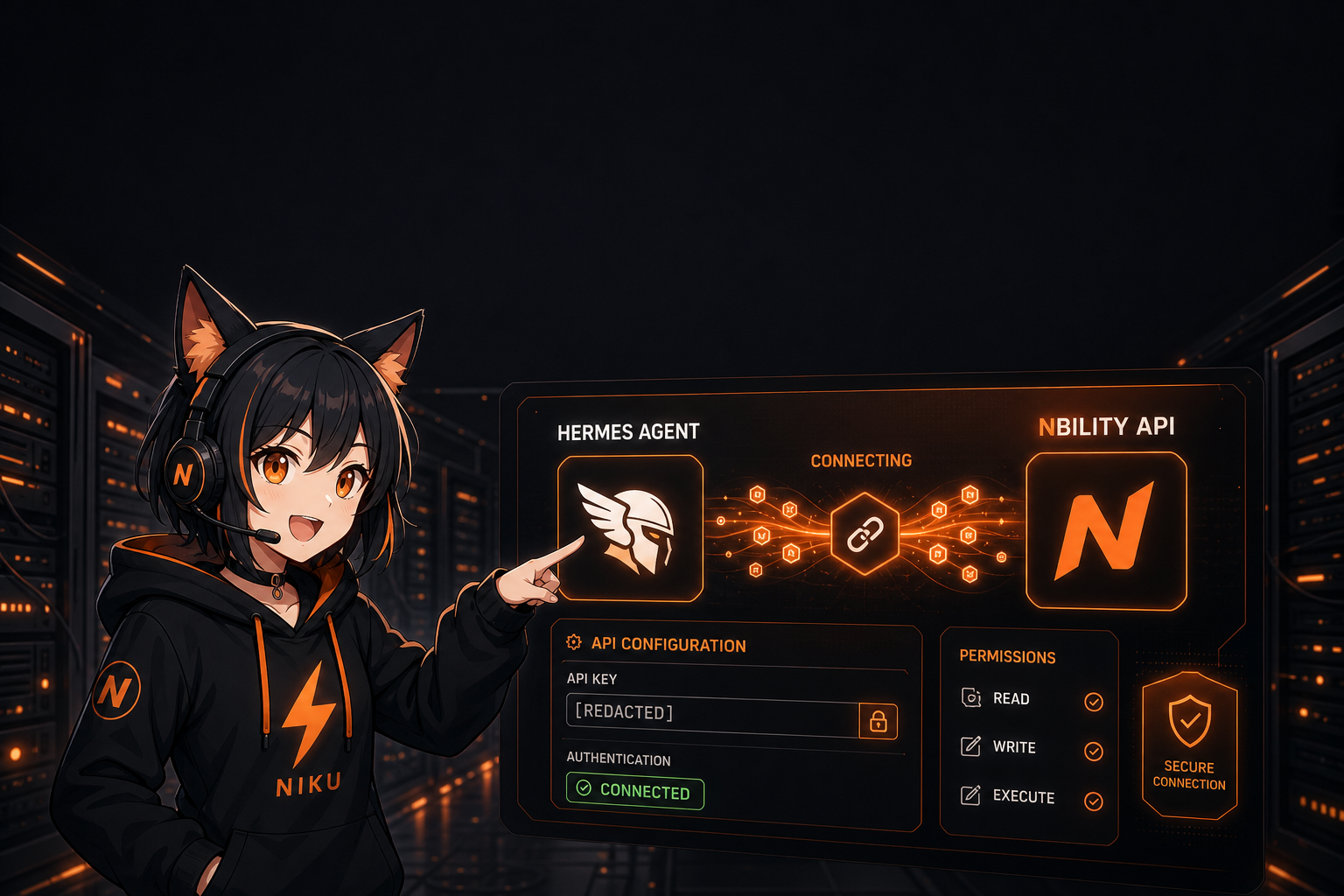
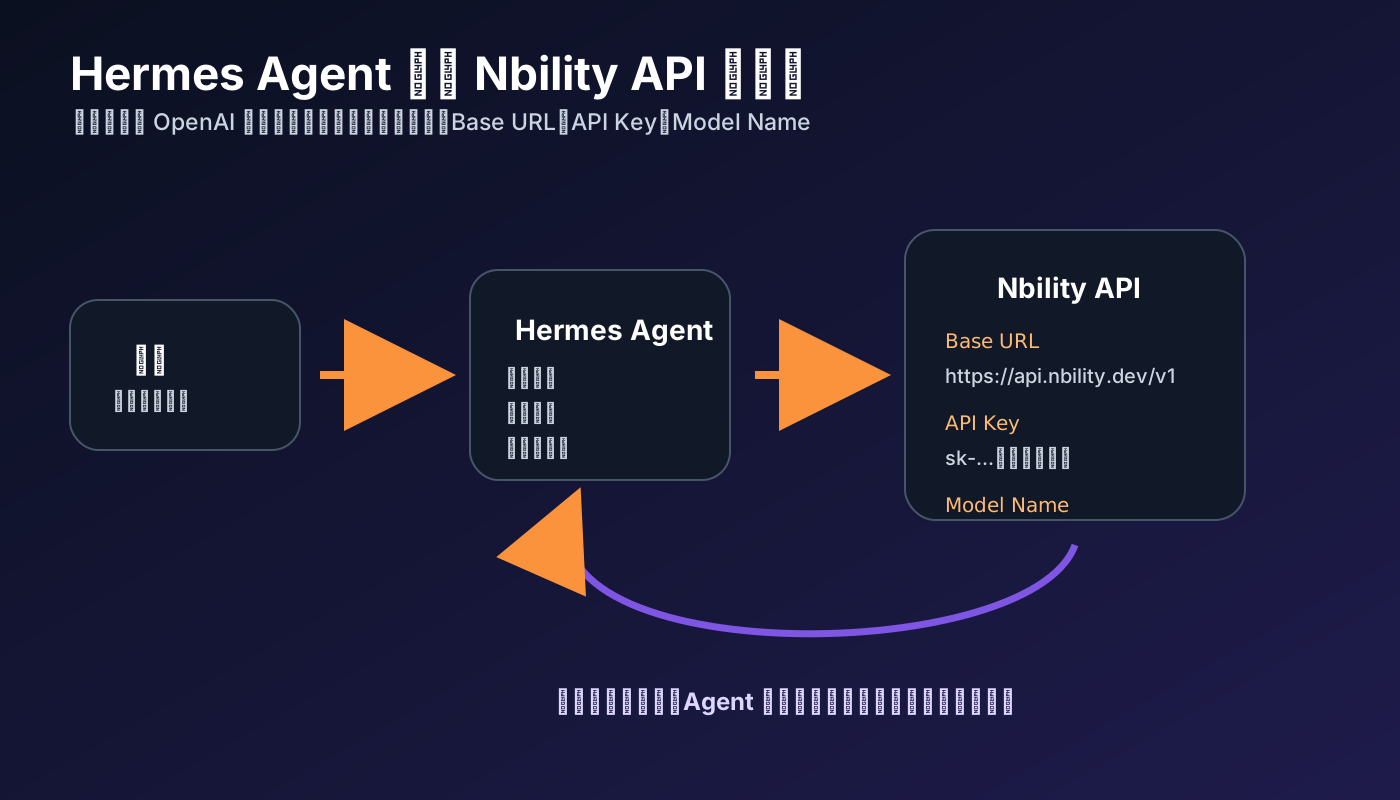
If you use an OpenAI-compatible API service such as Nbility, focus on three values:
Base URL
API Key
Model Name
Use the exact values from your own dashboard.
An OpenAI-compatible service usually looks like this:
Base URL: https://your-api-host/v1
API Key: sk-xxxxxxxxxxxxxxxx
Model: the model name you want to use
Do not put a real API key in public articles, screenshots, or group chats.
Step 3: Check Whether the Environment Works
After configuration, run:
hermes doctor
This command checks Hermes dependencies, configuration, model connectivity, and related status.
If you see an obvious error, first check these common causes:
- wrong API Key
- Base URL missing
/v1 - model name does not exist
- server cannot reach the API
- insufficient balance
- provider configuration mismatch
If the problem is token or model API related, check your API dashboard logs and balance first.
Step 4: Start Hermes Agent
The simplest way to start it is:
hermes
After startup, you enter an interactive command-line chat interface.
Ask a simple question first:
What can you do right now?
Then try a more Agent-like task:
List the files in the current directory and explain what this project is roughly about.
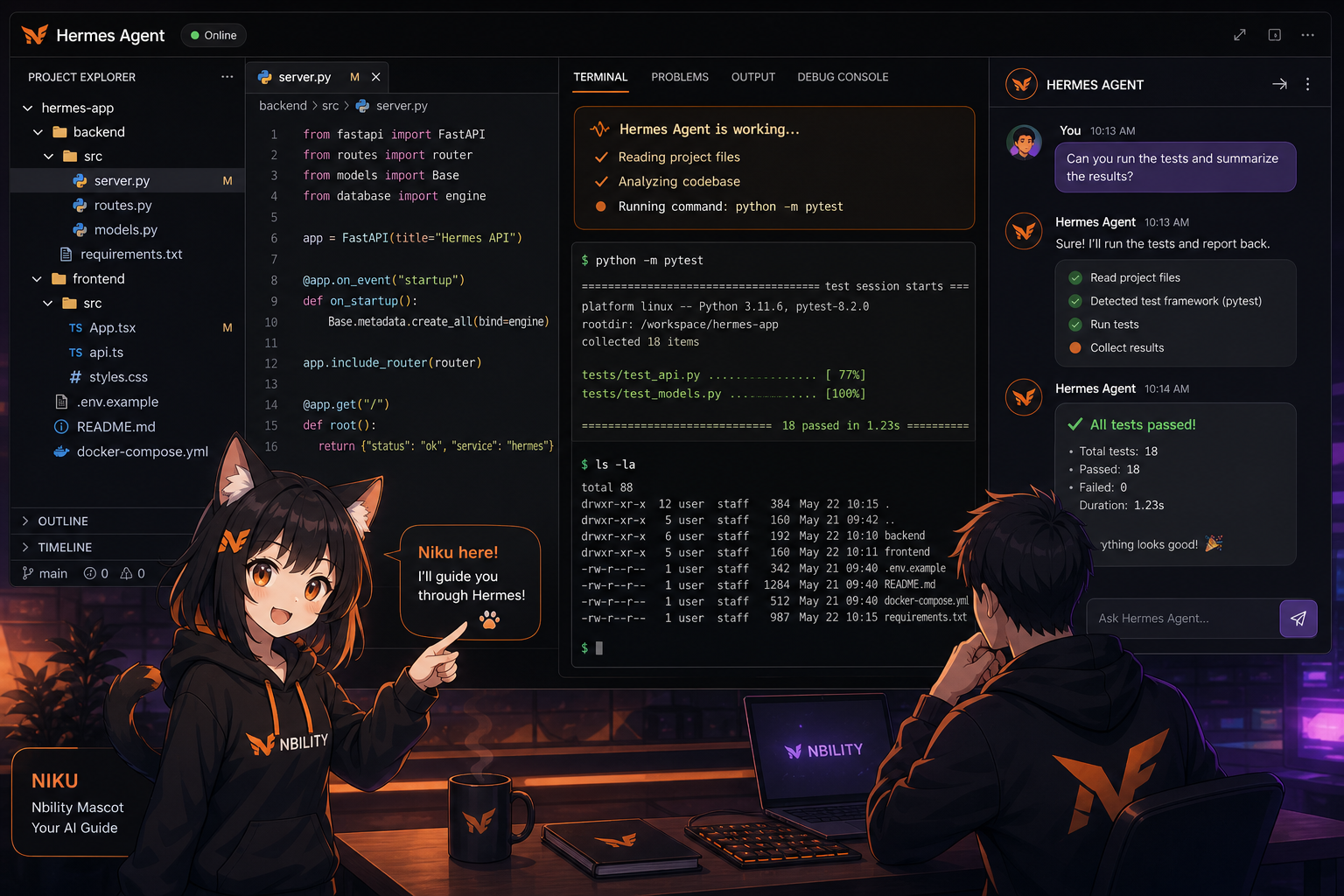
If Hermes has terminal and file-tool permissions, it can actually inspect directories and files instead of guessing.
This step is important.
At this point you are no longer using a web chatbot. You are using an AI Agent that can interact with the system environment.
Step 5: Try a Real Task
Do not only ask “hello”.
Whether an Agent is useful depends on whether it can complete concrete tasks.
Try something like:
Check this server's system information, including CPU, memory, disk, and current running processes.
Or:
Write a Python script that checks whether a website is reachable every 10 minutes, and prints an error log if it fails.
Or, if you are inside a project directory:
Read this project's README and package configuration, then tell me how to start the local development environment.
If it can read files, execute commands, and summarize the results, the basic capabilities are working.
Why Does an AI Agent Use More Tokens?
Many beginners notice that Agents consume tokens faster than normal chat.
That is normal.
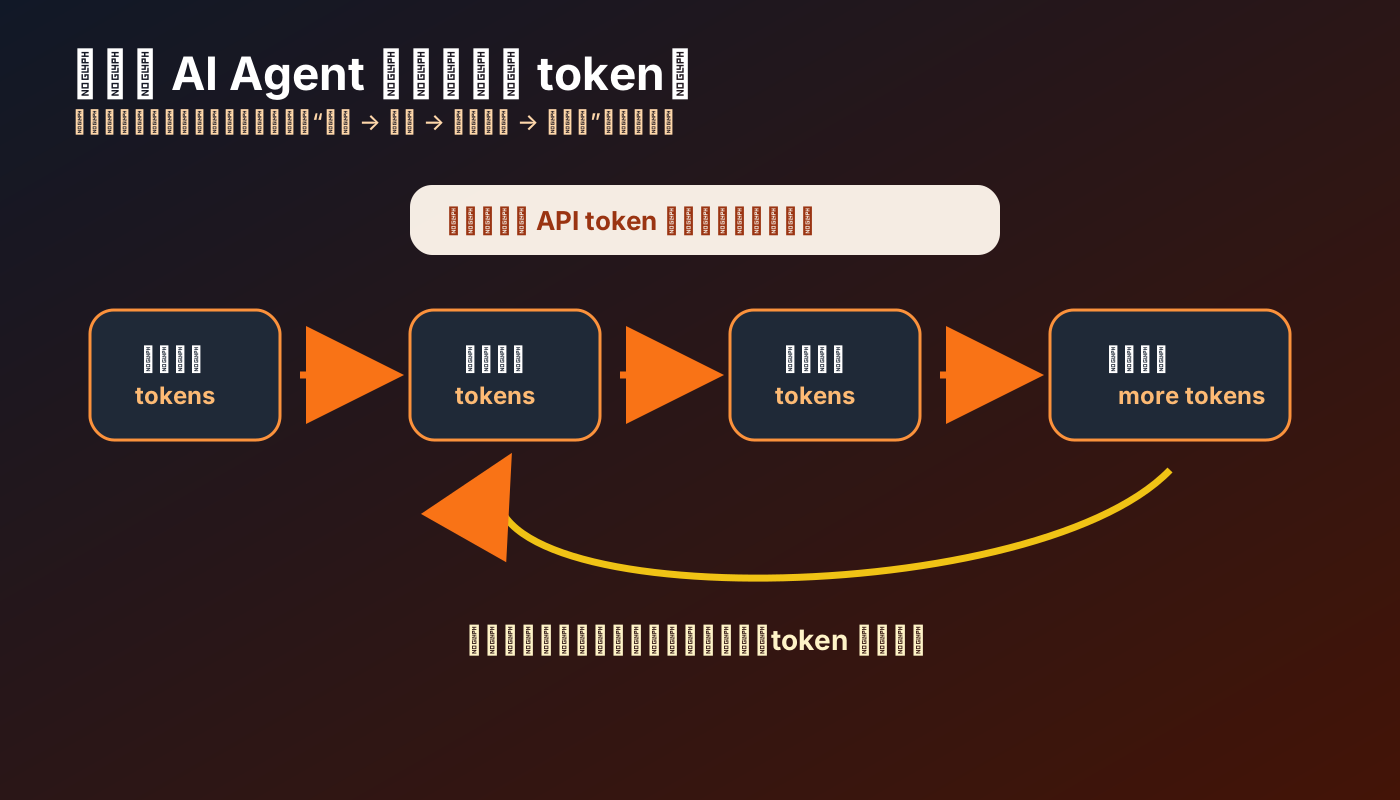
An Agent does not simply answer one sentence. It usually goes through this process:
- understand your task
- inspect the current environment
- read files
- analyze output
- decide the next step
- call tools
- read the results
- continue reasoning
- summarize at the end
Every step creates context.
If it is helping you inspect a code project, it may read the README, config files, source files, tests, and logs. The more it reads, the longer the context becomes, and the more tokens it uses.
So if you plan to use tools such as Hermes, OpenClaw, Dify, LobeChat, or NextChat long term, a stable model API token is basically required.
You can use official or third-party platforms such as OpenAI, Anthropic, and OpenRouter directly. You can also use a unified token site such as:
My suggestion is not to overthink this at the beginning. Pick an OpenAI-compatible service first and get the Agent running. Once you actually use it, choose cheaper or stronger models based on the task.
A Beginner-Friendly Model Selection Strategy
If you are just testing, do not start with the most expensive model.
Split by task:
Normal chat, summaries, and simple config edits:
Use a cheaper model
Coding, debugging, and reading projects:
Use a medium or stronger model
Complex refactors, long-context analysis, and multi-step Agent tasks:
Use a strong model
The point of an Agent is not to always use the most expensive model. It is to use the right model for the task.
A practical combination is:
- daily Q&A: cheaper model
- coding tasks: stronger model
- long document analysis: long-context model
- image generation: specialized image model
If your API platform supports switching across models, this becomes much easier.
FAQ
1. The hermes command is not found
The environment variable may not have refreshed.
Log in to the server again, or check the PATH instructions printed by the installer.
You can also try:
which hermes
to see whether the system can find it.
2. Model connection failed
Start with:
hermes doctor
Then confirm:
- API Key is correct
- Base URL is correct
- model name is correct
- the account still has balance
- the server can reach the API host
Many issues are not Hermes issues; they are API configuration mistakes.
3. Why can the Agent execute commands?
Because this is exactly the difference between an Agent and a normal chatbot.
But pay attention to safety. Do not casually give an unknown model unrestricted server access, especially on a production server.
Beginners should start on a test machine, lightweight server, or container environment.
4. Can it connect to Telegram, Weixin, or QQ?
Yes.
Hermes Agent supports multiple messaging platforms. I will continue with articles about:
- connecting Hermes to Telegram
- connecting Hermes to Weixin
- connecting Hermes to QQ groups
- summarizing group chats automatically
- monitoring websites and servers with Hermes
Deploying it to a server is only the first step. The fun parts come later.
That Is Enough for This Article
At this point, you have completed the basic Hermes Agent deployment:
- installed Hermes
- completed initial setup
- configured a model API
- checked the environment with
hermes doctor - started the AI Agent in the terminal
- asked it to inspect the environment and execute tasks
That is already a big step beyond ordinary web chat.
In the next article I will cover:
How to connect Hermes Agent to Nbility: what to put in Base URL, API Key, and model name.
If you want to follow along, prepare a model API token first.
I use:
It is suitable for testing and deploying open-source AI apps. For projects such as Hermes, OpenClaw, Dify, LobeChat, and NextChat that need an OpenAI-compatible endpoint, setting the API address and token is usually enough to get started.
Optional Short Summary
Use this if a platform needs a short summary:
This article walks through deploying Hermes Agent from scratch. Compared with a normal chatbot, an AI Agent can read files, execute commands, call tools, and complete multi-step tasks. The article covers server prerequisites, installation commands, initial setup, model API configuration, common issues, and why Agent-style apps continuously consume tokens. It is suitable for beginners who want to learn AI Agents, Hermes Agent, OpenAI-compatible APIs, and automation assistant deployment.