Connect Hermes Agent to Telegram: Turn Your Server-Side AI Agent into a Mobile Remote Assistant
Part 3 of the AI Agent Getting Started series: create a Telegram bot with BotFather, configure Hermes Gateway, set allowlists and group triggers, then control your server-side Agent from your phone.
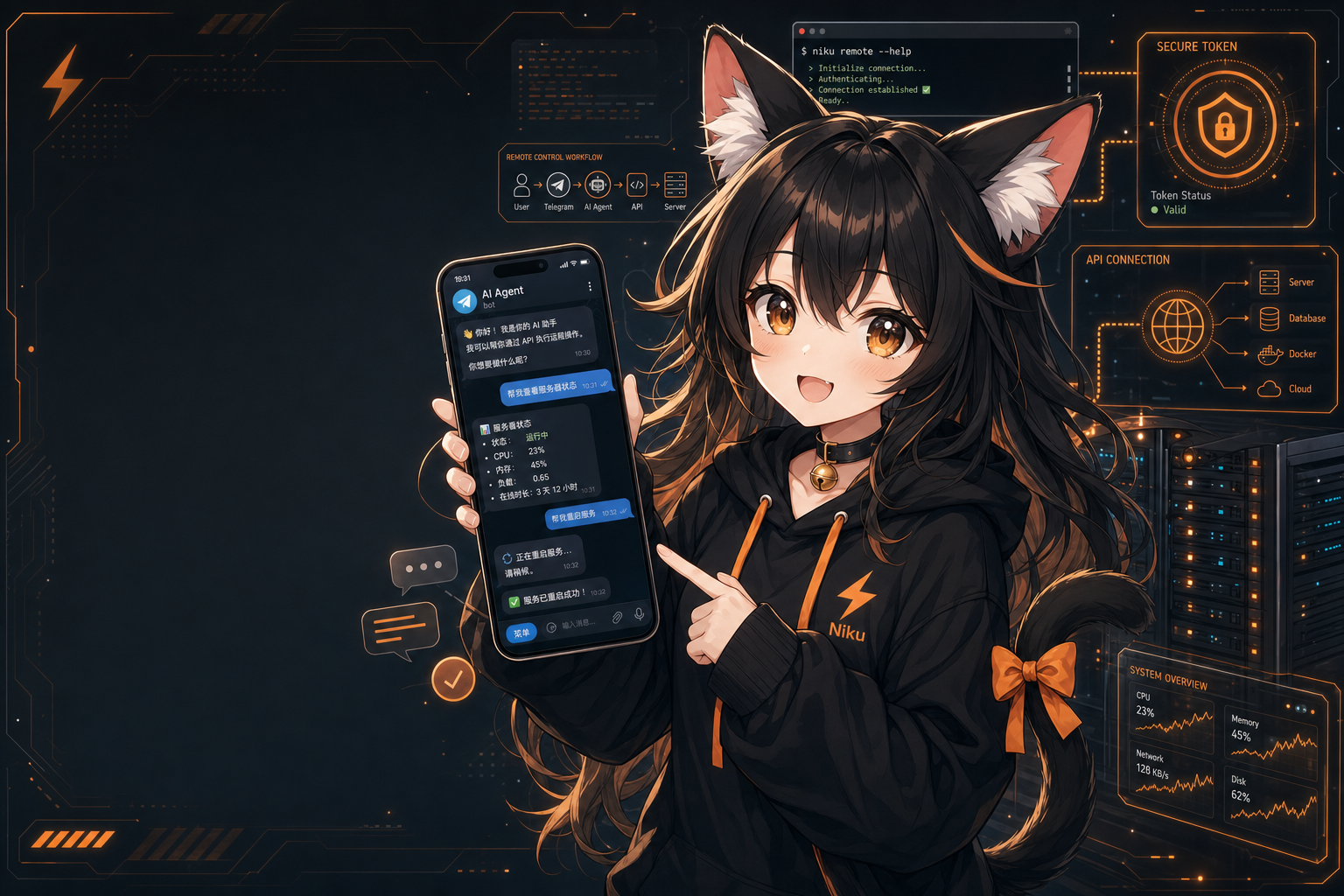
This is Part 3 of the “AI Agent Getting Started” series. In the first two articles, we installed Hermes Agent and connected it to a model API. Now we will add a genuinely useful interface: Telegram. After this setup, you can send a message from your phone and ask the Agent on your server to inspect logs, run commands, read files, summarize status, or send reports back to chat.
Summary
After deploying an AI Agent to a server, many people quickly run into a workflow problem:
The Agent is running, but I still need to SSH into the server every time I want to talk to it.
That works, but it misses the point. A practical AI Agent should be available when you are away from your desk:
- Ask “is the service down?” from your phone.
- Let the Agent inspect logs when someone reports a bug.
- Ask for a daily status summary before going to bed.
- Generate a Markdown report, image, or ZIP file and receive it directly in chat.
Hermes Agent’s Messaging Gateway is designed for exactly this. It can connect the same Hermes instance to Telegram, Discord, Slack, WhatsApp, Weixin, and other messaging platforms. Telegram is a great first choice because BotFather is easy to use and Telegram supports text, files, images, voice, groups, and topics.
This article walks through:
- Creating a Telegram bot with BotFather
- Adding the bot token to Hermes
- Restricting access with allowed user IDs
- Starting Hermes Gateway
- Using Hermes in DMs and groups
- Common pitfalls: privacy mode, mentions, file paths, and token usage
If you already connected Hermes to Nbility in Part 2, this article turns that setup into a mobile remote AI assistant.
Why Telegram Is a Good Interface for an Agent
The traditional server workflow looks like this:
Phone/Laptop -> SSH -> Server -> Manual commands
With Telegram, the workflow becomes:
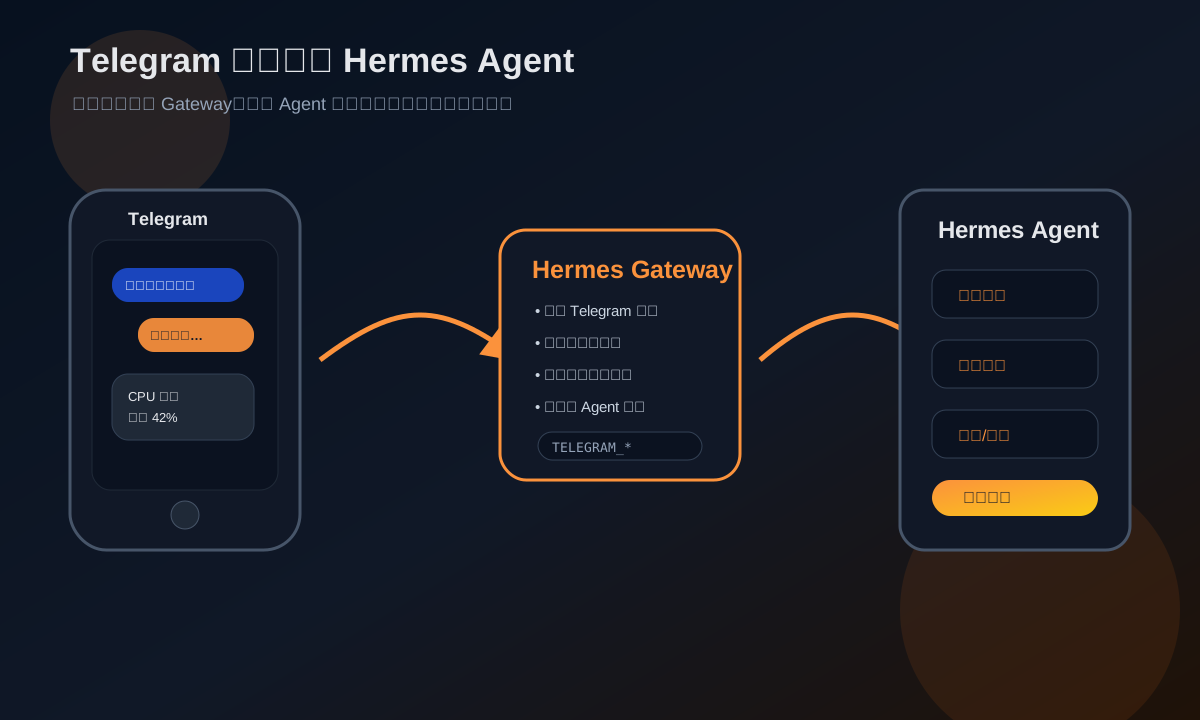
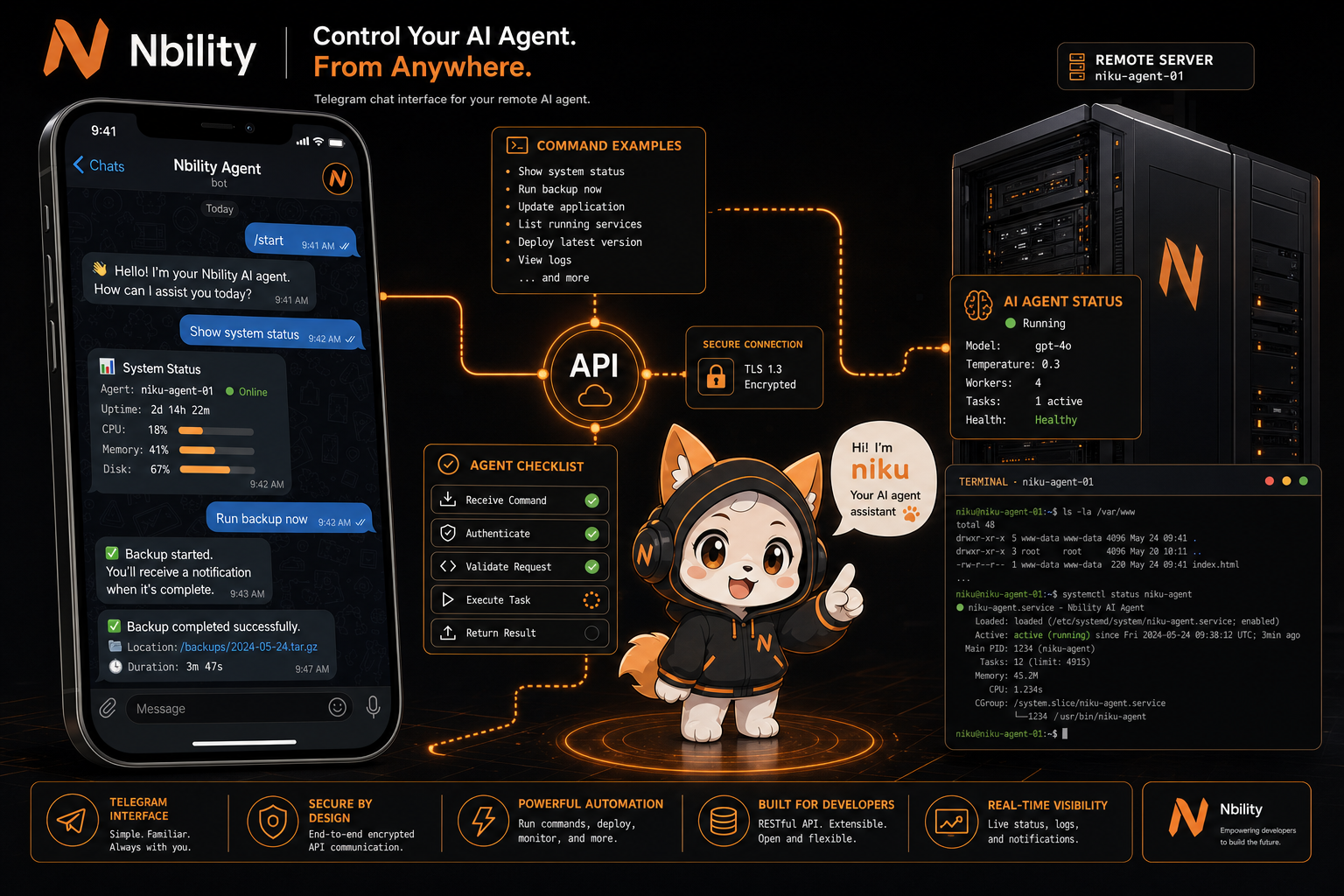
You send a message in Telegram. Hermes Gateway receives it, checks access rules, dispatches it to Hermes Agent, and Hermes uses the configured model plus tools to complete the task. The final answer goes back to Telegram.
The benefits are immediate:
- Mobile-friendly: no laptop required.
- Built-in notifications: long-running tasks and scheduled reports can be pushed to your phone.
- File delivery: generated Markdown, ZIPs, images, and logs can be sent as native Telegram attachments.
- Team collaboration: a group can @ the bot to inspect status, summarize discussions, or generate reports.
- Lower friction: compared with building a web dashboard, a Telegram bot is fast to launch.
The tradeoff is security. You are connecting a server-capable Agent to a chat app, so allowed users, group rules, and dangerous-command approvals matter.
Prerequisites
You need:
- A server or computer with Hermes Agent installed
- Hermes already working with a model provider
- A Telegram account
- Access to @BotFather
- Your numeric Telegram user ID
If you do not have a model API yet, prepare an OpenAI-compatible endpoint. For example, Nbility provides a convenient unified token/API entry:
Base URL: https://api.nbility.dev/v1
API Key: sk-[REDACTED]
Nbility:
https://nbility.dev
This is not about forcing a recharge. Once Hermes is available from Telegram, you will naturally use it more often: checking logs, running commands, summarizing context, and handling scheduled jobs. A stable API/token entry saves friction.
Step 1: Create a Telegram Bot with BotFather
Open Telegram and search for:
@BotFather
Send:
/newbot
BotFather asks for:
- A display name, for example
My Hermes Agent - A bot username ending in
bot, for examplemy_hermes_agent_bot
After creation, BotFather returns a token like:
123456789:ABCdefGHIjklMNOpqrSTUvwxYZ
Treat this token as a secret. Anyone with it can control the bot.
Do not:
- Post it in a group
- Show it in screenshots
- Commit it to GitHub
If it leaks, use BotFather to revoke it:
/revoke
Step 2: Get Your Telegram User ID
Hermes access control uses numeric Telegram IDs, not usernames.
You can query your ID with:
@userinfobot
@get_id_bot
The result looks like:
Id: 123456789
You will put that ID into:
TELEGRAM_ALLOWED_USERS=123456789
This ensures only you can call the bot.
Step 3: Configure Telegram in Hermes Gateway
The easiest path is the interactive setup:
hermes gateway setup
Select Telegram and enter:
- Bot token
- Allowed Telegram user IDs
- Optional home channel
For manual configuration, find your Hermes .env path:
hermes config env-path
It is usually:
~/.hermes/.env
Add:
TELEGRAM_BOT_TOKEN=123456789:ABCdefGHIjklMNOpqrSTUvwxYZ
TELEGRAM_ALLOWED_USERS=123456789
These are examples. Never publish your real token.
Then verify:
hermes config check
hermes doctor
If you use Nbility or another OpenAI-compatible provider, also confirm model configuration:
hermes model
Step 4: Start Hermes Gateway
For testing, run the gateway in the foreground:
hermes gateway
You should see logs similar to:
Starting Hermes Messaging Gateway...
Telegram adapter started
Open your Telegram bot and send:
Hi, what can you do right now?
If everything is configured correctly, it will reply like a normal chatbot. The difference is that behind the chat interface is a full Hermes Agent with tools.
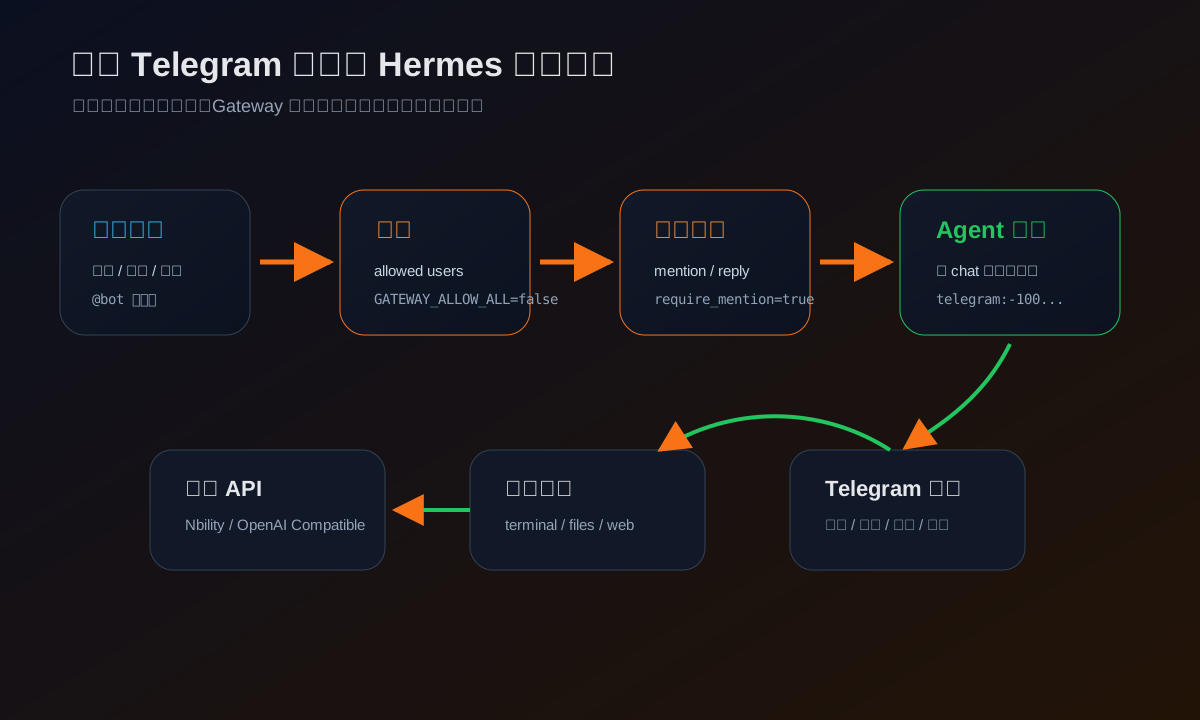
Try lightweight tasks first:
Check the current system time.
List the files in the current working directory.
Search the Hermes Agent Telegram Gateway docs and summarize the setup steps.
These requests may trigger model reasoning and tool calls, so they consume tokens. Longer logs, larger files, and more complex tasks cost more.
Step 5: Keep Gateway Running in the Background
Foreground mode is good for testing. For long-term usage, install it as a service:
hermes gateway install
hermes gateway start
hermes gateway status
Make sure:
- Gateway restarts after server reboot
- The service can read
.envvalues such as Telegram token and model API key - Logs are easy to inspect
Common checks:
hermes gateway status
journalctl --user -u hermes-gateway -n 100 --no-pager
For a system-level service, use:
journalctl -u hermes-gateway -n 100 --no-pager
Hermes logs are also under:
~/.hermes/logs/
Step 6: Use It in Telegram Groups
After DMs work, you may want to add the bot to a group. This is useful for:
- Checking service status when someone reports downtime
- Summarizing project discussions
- Capturing status-page screenshots
- Drafting Markdown posts or reports
Groups require more care because Telegram has privacy mode and Hermes has trigger rules.
BotFather Privacy Mode
Telegram bots have privacy mode enabled by default. With privacy mode on, the bot usually only sees:
- Slash commands
- Messages that @mention it
- Replies to the bot
If you want the bot to observe group context, disable privacy mode in BotFather:
/mybots
After changing privacy mode, remove the bot from the group and invite it again. Telegram often caches the privacy state when the bot joins.
If you do not need passive observation, keep privacy mode on and trigger the bot only with mentions. That is safer.
Recommended Group Trigger Rules
For beginners, start with “reply only when mentioned.” This avoids noisy replies and token spikes.
Example config.yaml:
telegram:
  allowed_chats:
    - "-1001234567890"
  group_allowed_chats:
    - "-1001234567890"
  require_mention: true
  observe_unmentioned_group_messages: true
Equivalent .env values:
TELEGRAM_ALLOWED_CHATS=-1001234567890
TELEGRAM_GROUP_ALLOWED_CHATS=-1001234567890
TELEGRAM_REQUIRE_MENTION=true
TELEGRAM_OBSERVE_UNMENTIONED_GROUP_MESSAGES=true
This means:
- Only approved groups are allowed
- Ordinary group messages can be added to context
- The Agent only runs when the bot is mentioned, replied to, or matched by a wake pattern
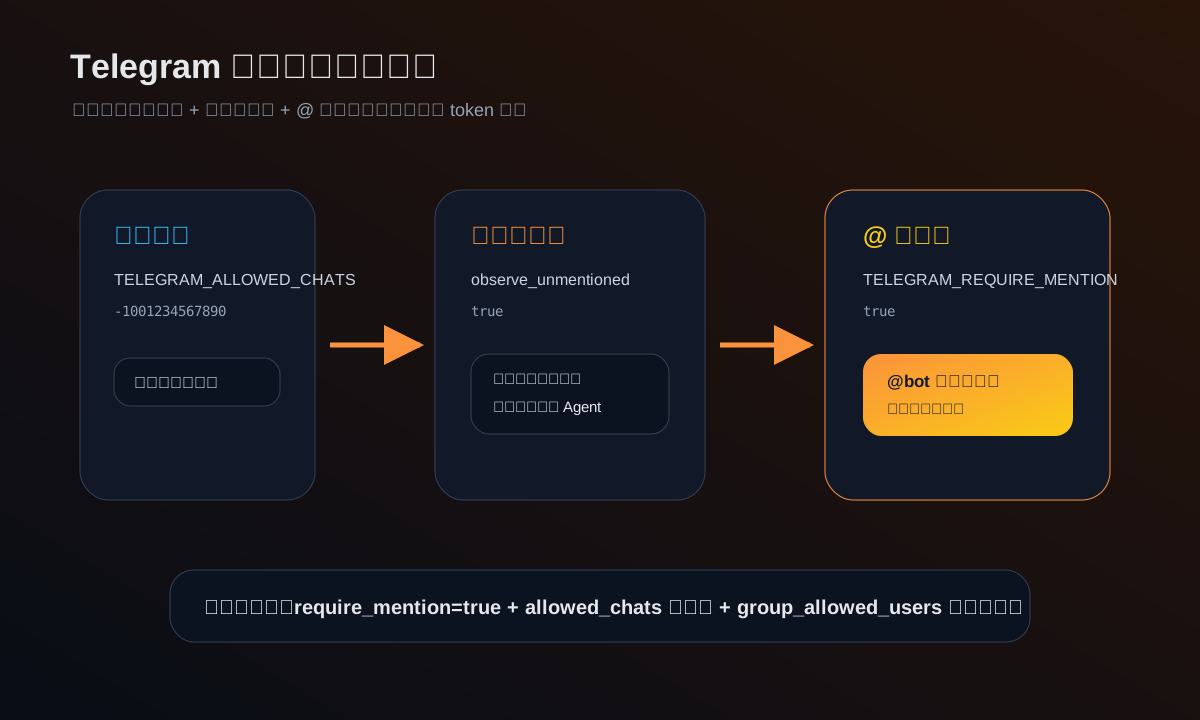
To find a group ID, inspect Gateway logs, use /status, or set the current chat as home:
/sethome
Group IDs are often negative, for example:
-1001234567890
Practical Use Cases
Check Server Status
Check CPU, memory, disk, and key services. Give me a concise status summary.
Inspect Logs
Read the latest 100 lines of the gateway log and tell me if there are Telegram or API errors.
Generate and Send a File
Write today's server inspection report as Markdown and send it to me.
Telegram supports native attachments through MEDIA:/path/to/file. The file must be readable by the Gateway process.
If an Agent running in Docker writes:
/workspace/report.md
but Gateway runs on the host, the host may not be able to read it. Prefer a host-readable output path such as:
~/.hermes/cache/documents/report.md
Then send:
MEDIA:/root/.hermes/cache/documents/report.md
Scheduled Pushes
Once Telegram works, Hermes cron jobs become much more useful:
Every morning at 9, summarize server status and yesterday's key logs, then send it to Telegram.
Will Token Usage Increase?
Yes, and that is expected.
After Telegram is connected, you will interact with the Agent more often. Telegram workflows also tend to involve:
- Longer context
- Group chat history
- Log summaries
- File reads
- Web searches
- Scheduled jobs
- Images and documents
Practical recommendations:
- Use cheaper models for lightweight daily tasks.
- Use stronger models for code changes, log analysis, and long-context tasks.
- Enable
require_mentionin groups. - Summarize or filter logs before sending them to the model.
- Convert recurring workflows into skills to avoid repeating long instructions.
If you use Nbility, it can act as one unified token entry for multiple OpenAI-compatible models. Hermes only needs a Base URL, API Key, and model name. The same pattern can later be reused for OpenClaw, Dify, NextChat, LobeChat, and Open WebUI.
Troubleshooting
The Bot Does Not Reply in DM
Check:
hermes gateway status
hermes config check
grep -i "telegram\|error\|failed" ~/.hermes/logs/gateway.log | tail -50
Common causes:
- Wrong
TELEGRAM_BOT_TOKEN - Gateway is not running
- Service did not reload
.env - Model API key is invalid
- Sender is not in
TELEGRAM_ALLOWED_USERS
The Bot Does Not Reply in a Group
Check:
- The bot is actually in the group
- Telegram privacy mode is not blocking messages you expect it to see
- You removed and re-added the bot after changing privacy mode
- Group ID is in
TELEGRAM_ALLOWED_CHATS - User ID is in
TELEGRAM_ALLOWED_USERSorTELEGRAM_GROUP_ALLOWED_USERS TELEGRAM_REQUIRE_MENTION=trueis set if you expect mention-only behavior
The Bot Replies to Every Message
Set:
TELEGRAM_REQUIRE_MENTION=true
And restrict groups:
TELEGRAM_ALLOWED_CHATS=-1001234567890
Files Do Not Send
Verify the file is readable by Gateway:
test -r /path/to/file && echo OK
If Gateway runs on the host but the file is created inside a container, mount a shared directory or copy the file to a host-readable path.
API Cost Suddenly Rises
Likely causes:
- Free-response group behavior
- Long logs
- Frequent scheduled jobs
- Repeated reads of large files
- Using an expensive model for simple tasks
Fixes:
- Enable mention-only group mode
- Restrict allowed chats
- Reduce cron frequency
- Filter logs before summarization
- Route simple tasks to cheaper models
Recommended Safe Defaults
For personal use:
TELEGRAM_BOT_TOKEN=123456789:ABCdefGHIjklMNOpqrSTUvwxYZ
TELEGRAM_ALLOWED_USERS=123456789
TELEGRAM_REQUIRE_MENTION=true
GATEWAY_ALLOW_ALL_USERS=false
For one trusted group:
TELEGRAM_ALLOWED_CHATS=-1001234567890
TELEGRAM_GROUP_ALLOWED_CHATS=-1001234567890
TELEGRAM_GROUP_ALLOWED_USERS=123456789,987654321
TELEGRAM_REQUIRE_MENTION=true
TELEGRAM_OBSERVE_UNMENTIONED_GROUP_MESSAGES=true
Start safe, then relax rules only when you understand the behavior.
Final Takeaway
In the first two articles, we made Hermes Agent run on a server and connected it to a model API.
After this article, Hermes is no longer just a terminal tool. It becomes a mobile remote assistant:
Telegram -> Hermes Gateway -> Hermes Agent -> Model + Tools + Server
If you plan to use AI Agents seriously, Telegram is one of the best early integrations. It turns the Agent from “a tool I open occasionally” into “an assistant I can assign work to anytime.”
For model API and token supply, you can reuse the OpenAI-compatible setup from Part 2. If you want a convenient unified entry, use:
https://nbility.dev
One API Key can power Hermes today and later OpenClaw, Dify, NextChat, LobeChat, and other AI apps.
Next article:
Hermes Agent for QQ Groups: auto Q&A, group summaries, and status-page screenshots.
Image Prompts
Cover
A polished tech blog cover illustration. niku, Nbility mascot, cute anime catgirl, long fluffy black hair with warm brown highlights, black cat ears with pink inner ears and white fur, fluffy black cat tail with orange bow, oversized black hoodie with orange drawstrings and orange lightning logo, black choker with golden bell, black and orange brand color palette. She is holding a smartphone showing a Telegram chat with an AI agent, while a glowing server rack and terminal window run in the background. Include visual elements of message bubbles, secure token icons, API lines, and remote control workflow. Dark futuristic dashboard, orange accents, clean empty space for Chinese title, no readable secrets, no real API keys, high quality anime tech illustration.
Body Illustration
A clean anime-tech illustration showing a smartphone Telegram chat controlling a remote AI agent on a server. Include niku as a small assistant mascot, server rack, command terminal, glowing API connection lines, message bubbles, checklist panels, black and orange Nbility palette. No real tokens, use [REDACTED] for any key-like text, polished technical blog illustration.